1
Check the two counts
Scheduled and In progress at the top count the active work orders.
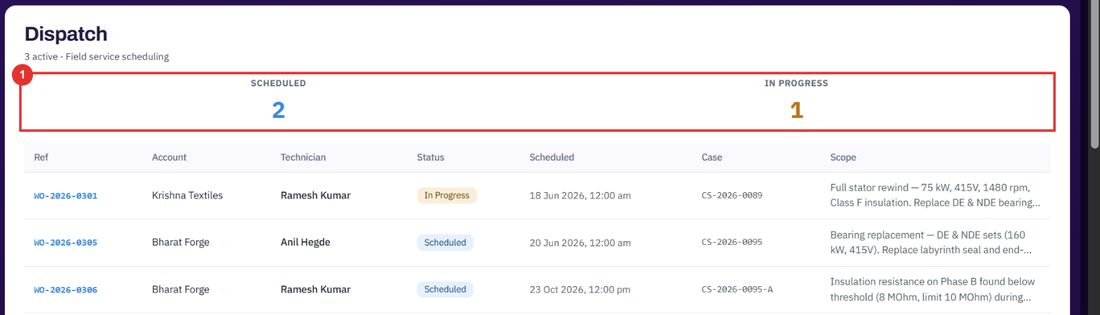
Dispatch is the schedule of every active work order: who it is with, when it is booked and what the job is. You book a technician when you raise the work order.
Want the full chapter? Solution Guide, chapter 3: Service (PDF) · All documentation
When you need to know who is where today and next week.
Scheduled and In progress at the top count the active work orders.
Each row has the work order reference, the account, the technician, the status, the scheduled date and time, the case and the scope of work.
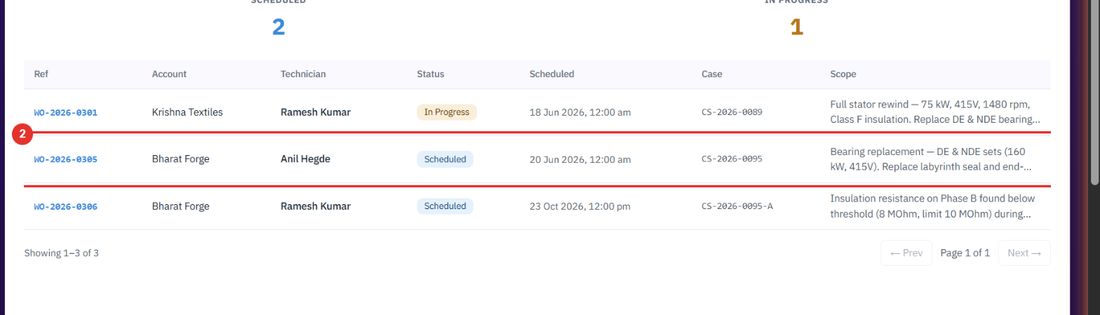
The blue reference opens the work order page.
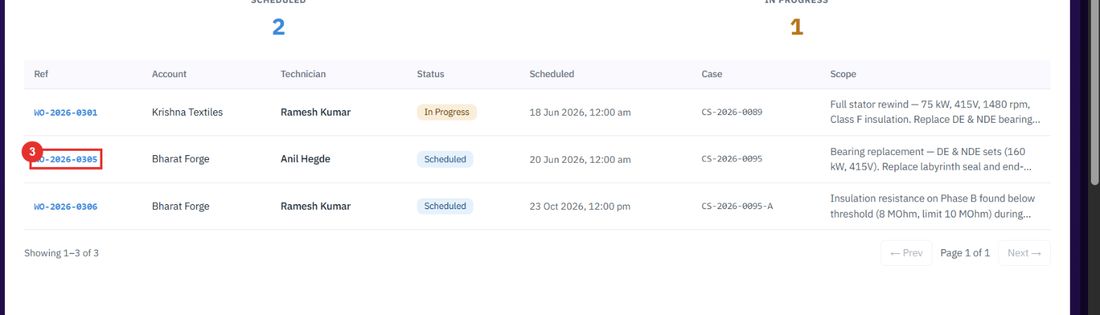
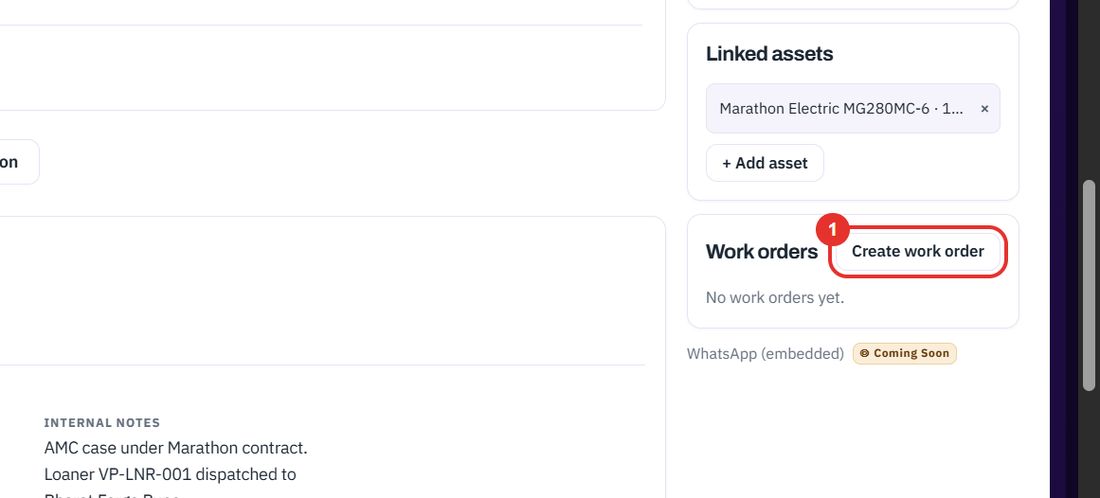
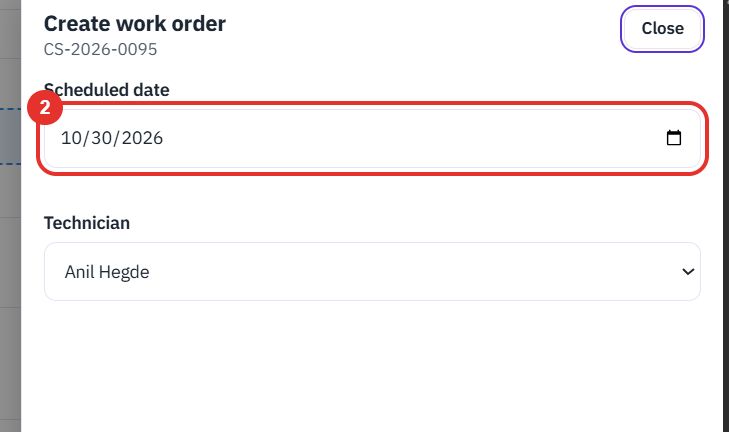
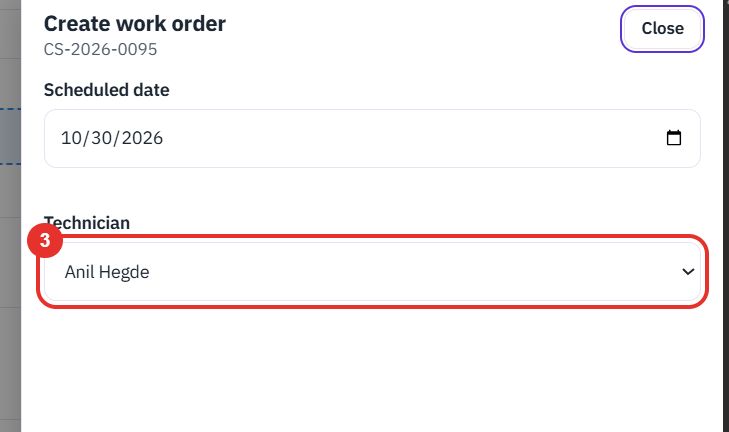
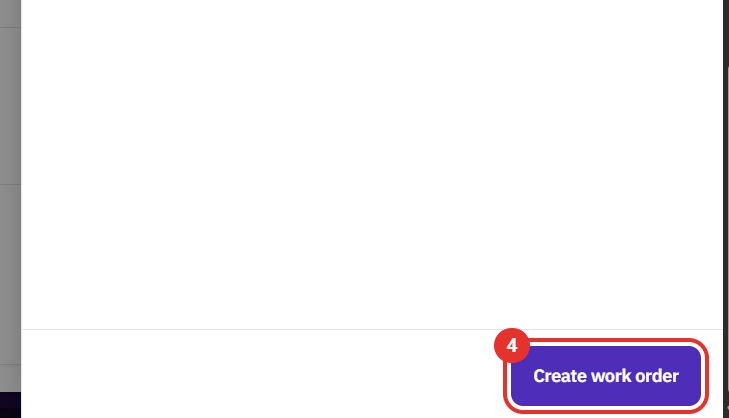
The technician and the date are set when the work order is raised, from the case.
In the Work orders card of the case page.
The date the job is booked for.
Pick who does the job.
Active work orders are listed on the Dispatch page.
More on the work order itself in Work orders. To see who is free, see Technicians.
Twenty minutes on a live workspace, with your files and your team.