1
Click + New Technician
On the Technicians page, top right. The form says Add a field technician to your team.
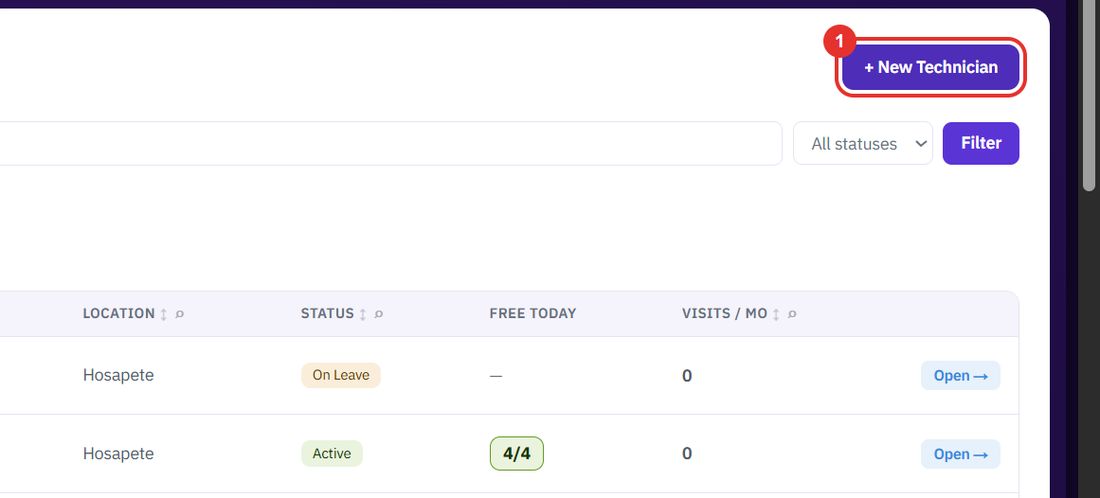
The technician list is your field team. Keep each person's skills, base location and daily visit limit here so jobs go to the right person.
Want the full chapter? Solution Guide, chapter 3: Service (PDF) · All documentation
When someone joins the field team.
On the Technicians page, top right. The form says Add a field technician to your team.
The only required field. Phone and Email sit next to each other below it.
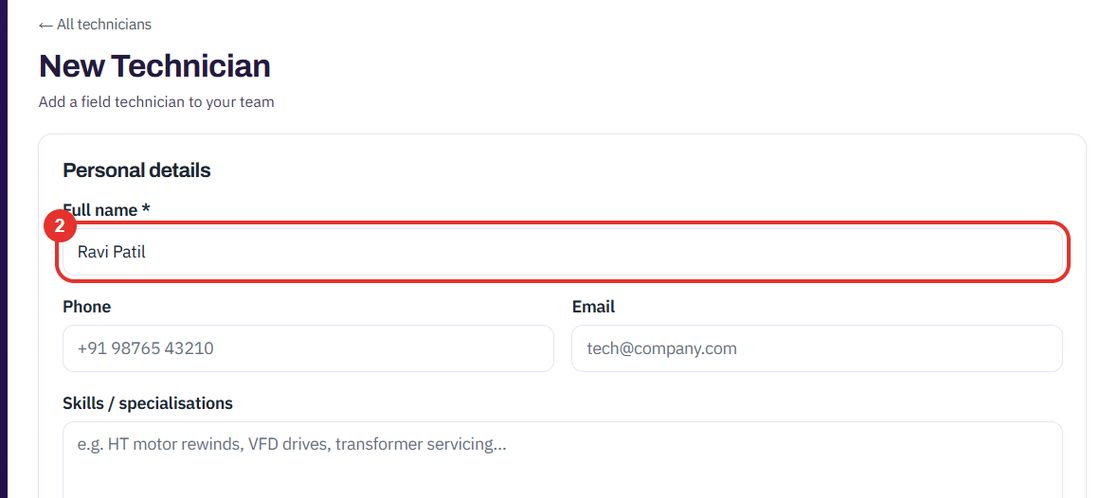
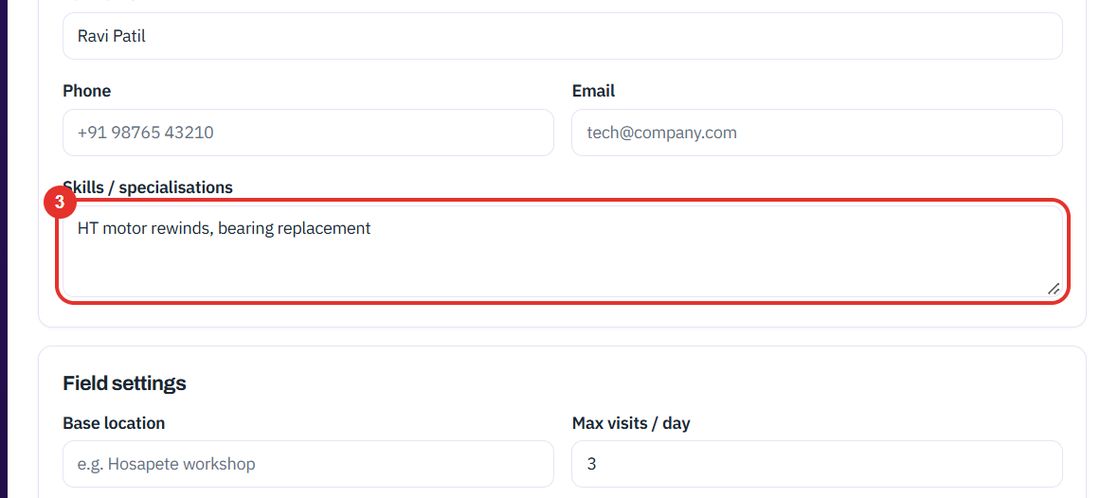
Free text, for example HT motor rewinds, bearing replacement. It is shown as tags on the technician's page.
Under Field settings. For example Hosapete workshop.
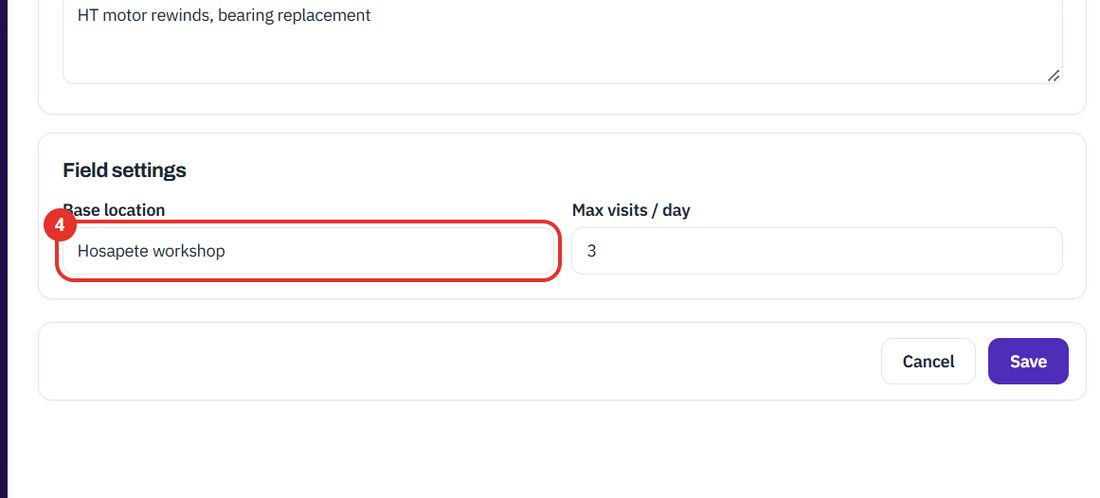
The most jobs the technician can take in a day. The list uses it to show free slots.
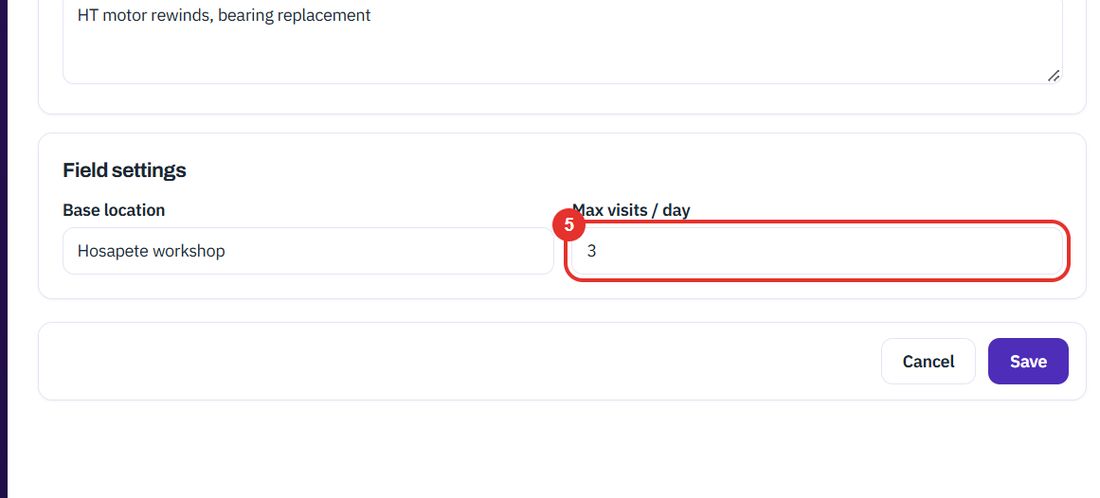
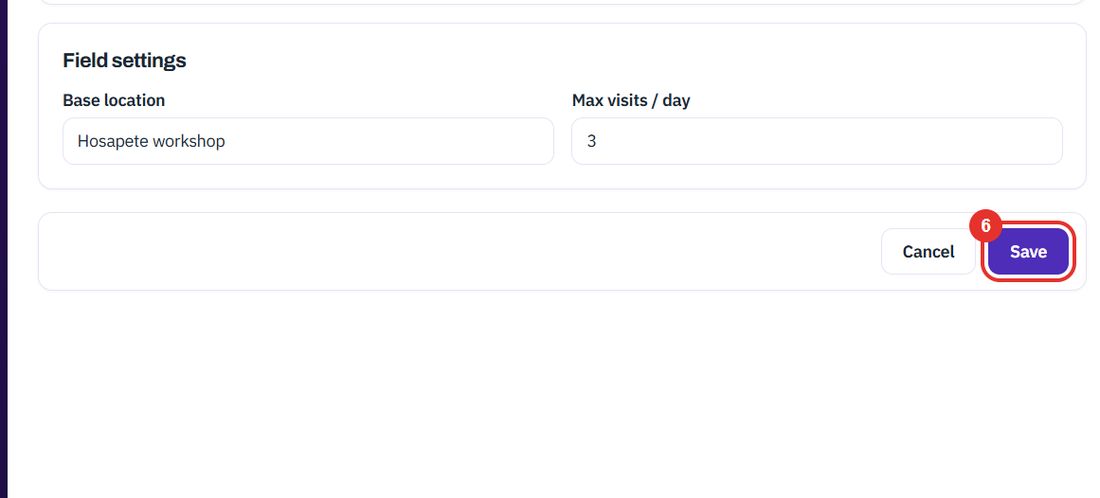
Cancel leaves without saving.
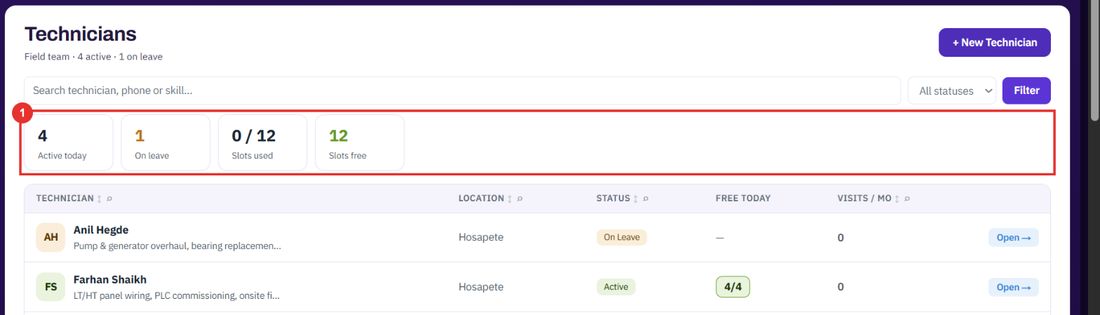
When you are choosing who to send.
Active today, On leave, Slots used and Slots free sum up the team.
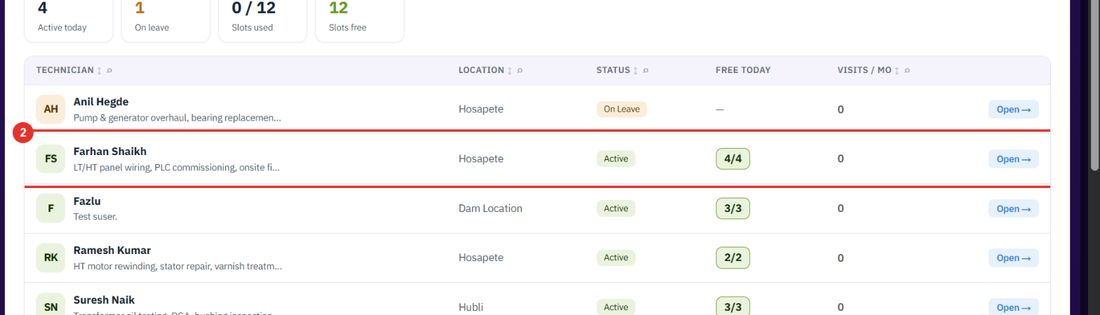
The list shows location, status (Active or On Leave), the free slots today as a fraction such as 4/4, and the visits this month.
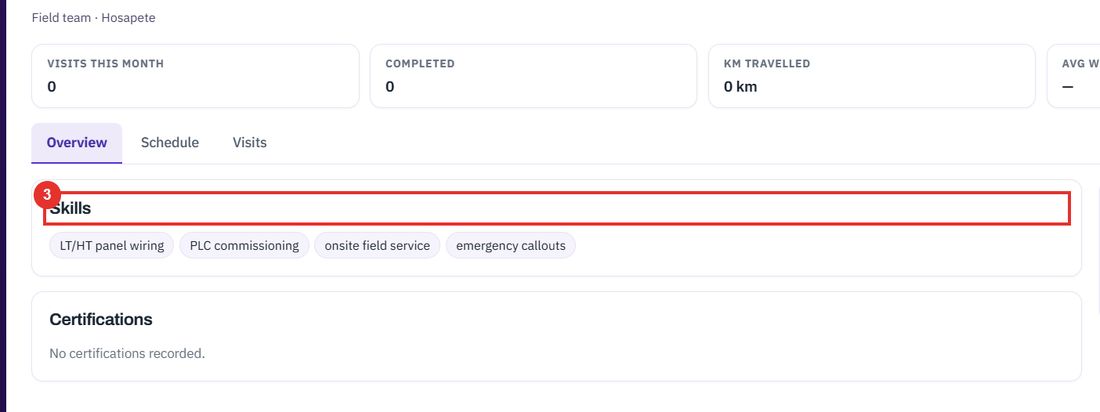
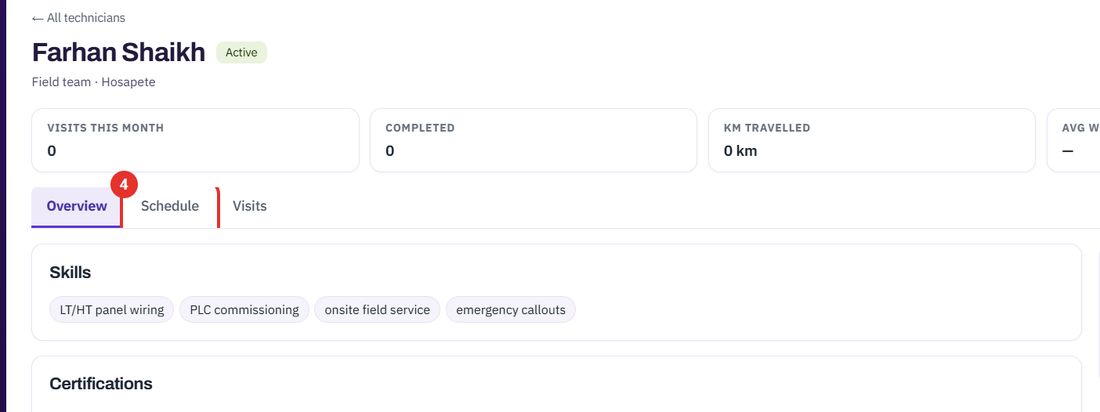
On the Overview tab, skills are shown as tags. Certifications is the card below.
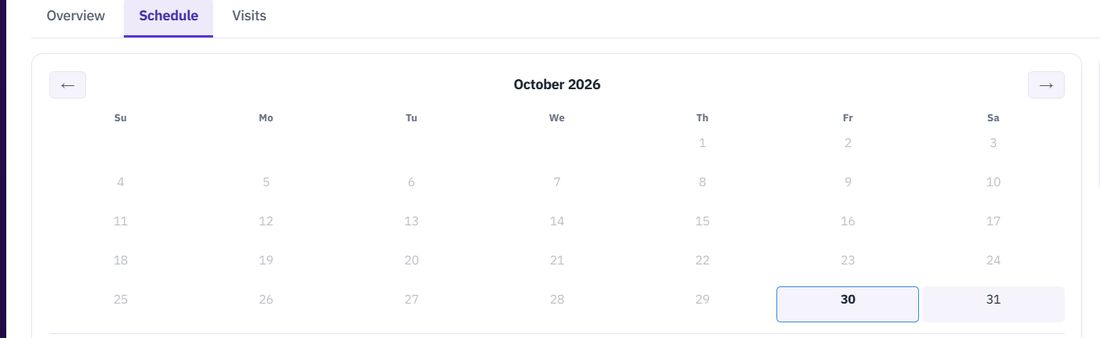
A month calendar for this technician. Use the arrows to move between months.
Twenty minutes on a live workspace, with your files and your team.