1
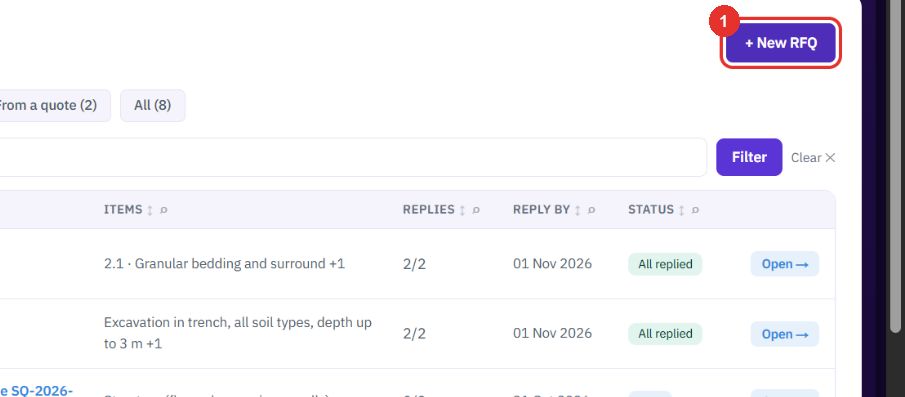
Click + New RFQ
The button is at the top right of the RFQs list.
Ask suppliers for a price on items you cannot price yet. Each supplier gets an email and a reply link, you compare the answers and award each line.
Want the full chapter? Solution Guide, chapter 2: Sales and tenders (PDF) · All documentation
The form is filled here only to show it. Nothing was sent.
The button is at the top right of the RFQs list.
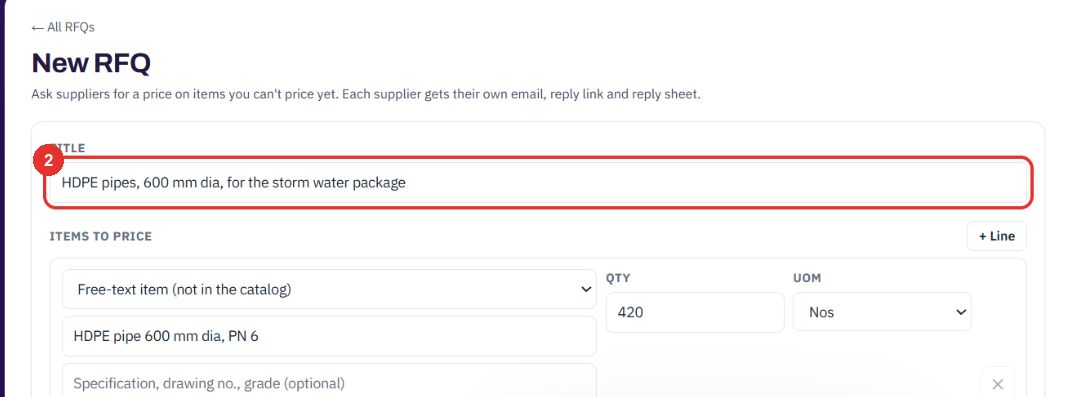
Name the request. "Ask suppliers for a price on items you can't price yet. Each supplier gets their own email, reply link and reply sheet."
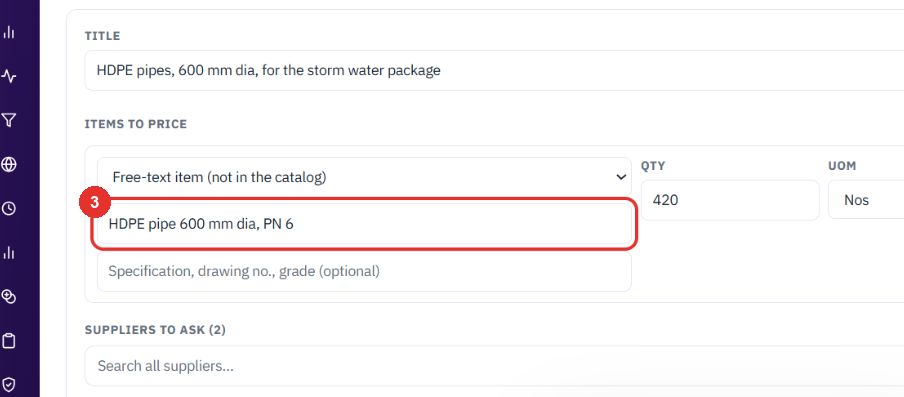
Under Items to price pick an item from the catalogue or choose Free-text item, then enter the description, Qty and unit. + Line adds another.
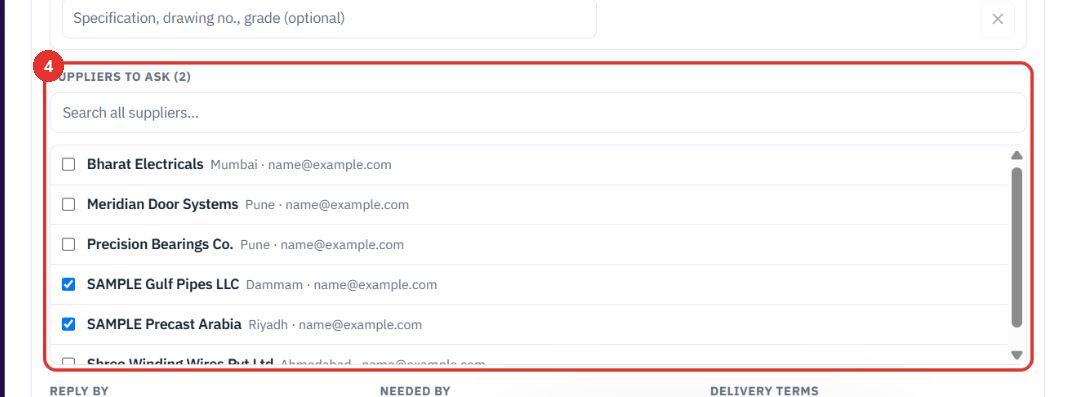
Under Suppliers to ask search and tick each supplier. The count shows in the heading.
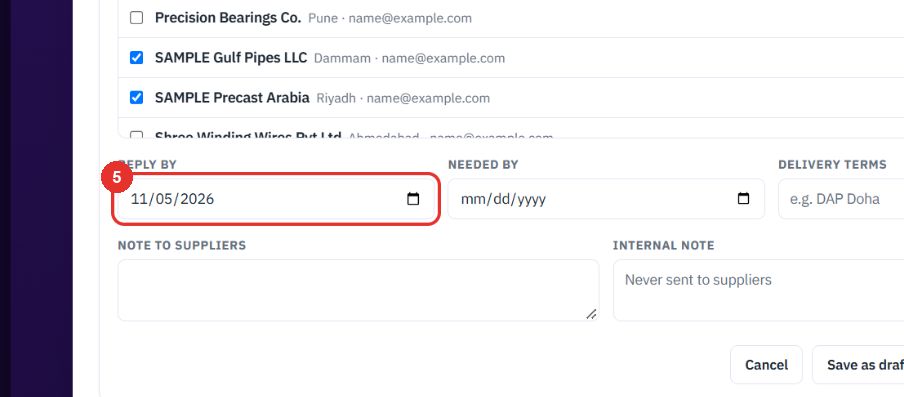
The date suppliers must answer by. Needed by, Delivery terms, Note to suppliers and Internal note follow. The internal note is never sent to suppliers.
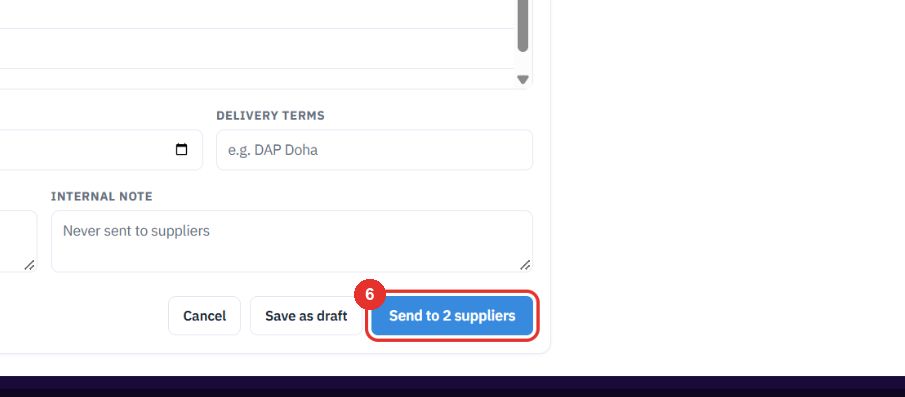
The button shows how many suppliers will get the request. Save as draft keeps it unsent. This guide did neither.
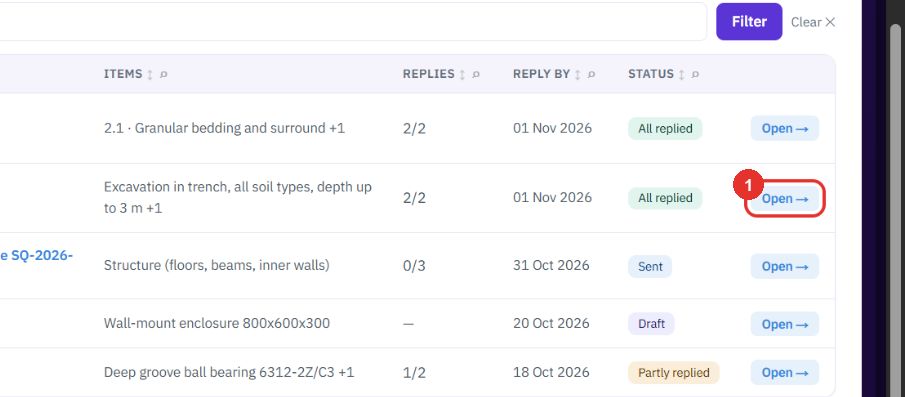
The example is RFQ-0006, with two suppliers who have replied.
The list shows items, replies, the reply-by date and the status of each RFQ. The tabs above it are Open, Waiting on suppliers, Ready to award, Awarded, From a quote and All.
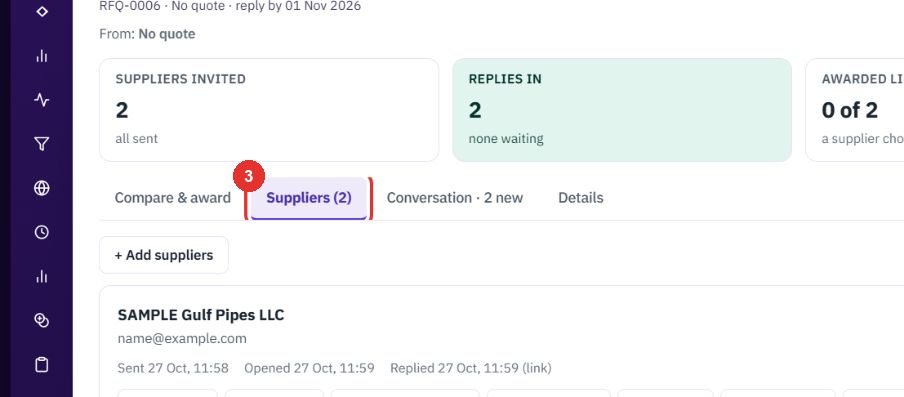
Suppliers invited, Replies in, Awarded lines and Still open.

Each supplier shows when the mail was sent, opened and replied to.
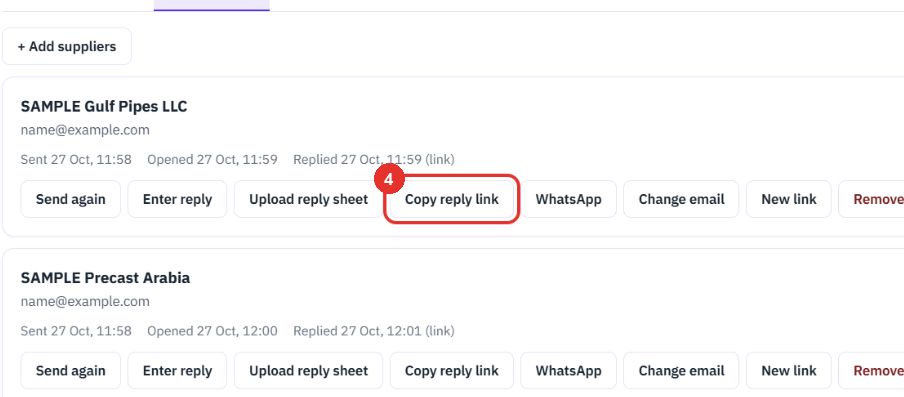
Every supplier has their own link. The row also has Send again, Enter reply, Upload reply sheet, WhatsApp, Change email and New link. The link was not copied here.
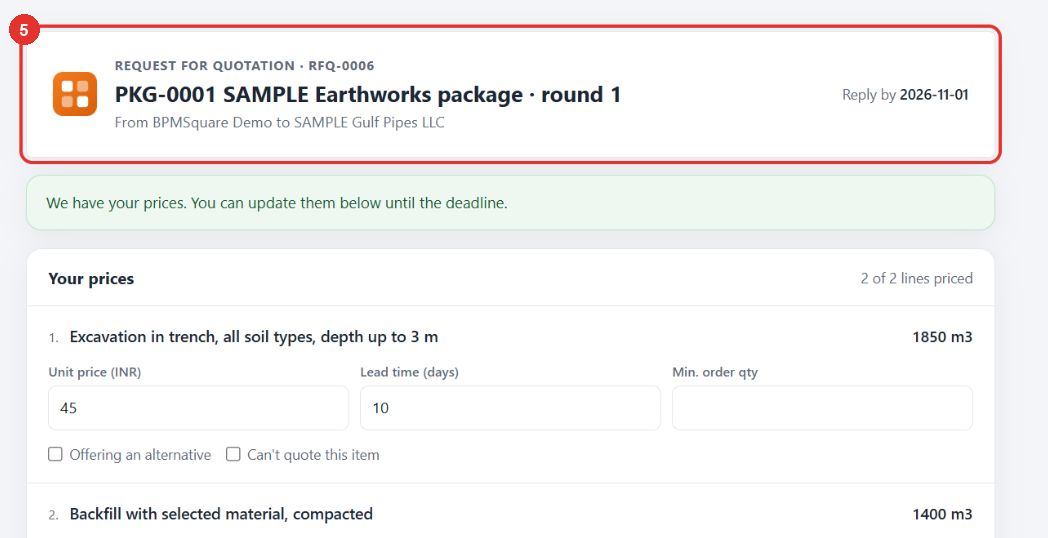
The supplier needs no login. The page names the RFQ, who it is from and the reply-by date.
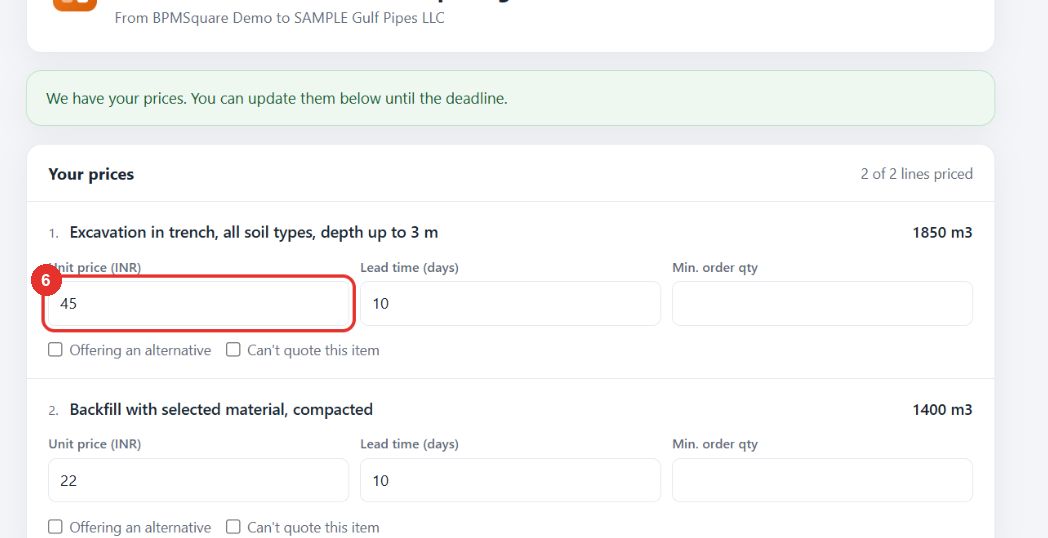
Per line the supplier enters Unit price, Lead time (days) and Min. order qty. They can tick Offering an alternative or Can't quote this item.
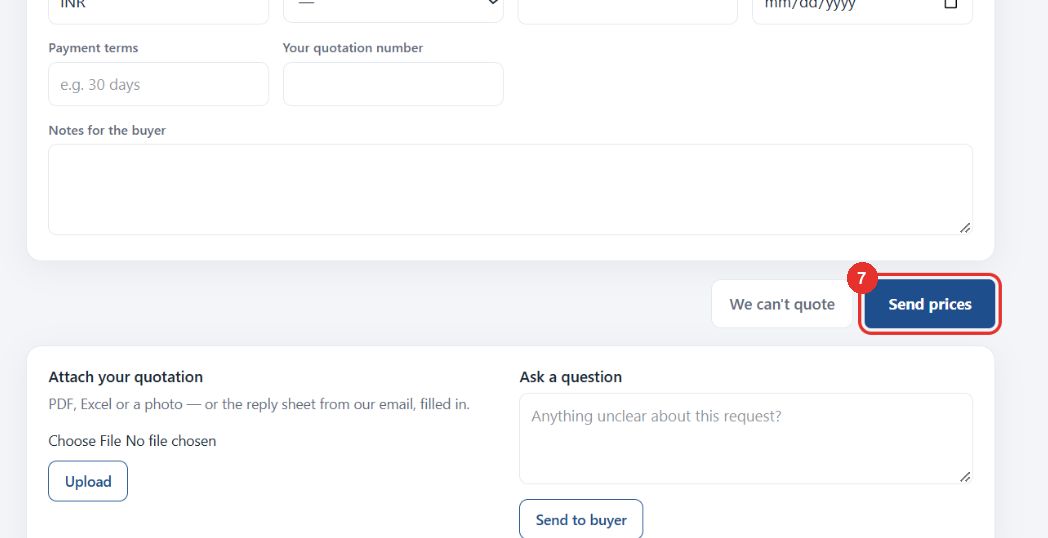
Below the lines are currency, delivery terms, freight, validity, payment terms and notes. Attach your quotation takes a PDF or Excel file, and Ask a question reaches you. No prices were sent from this guide.
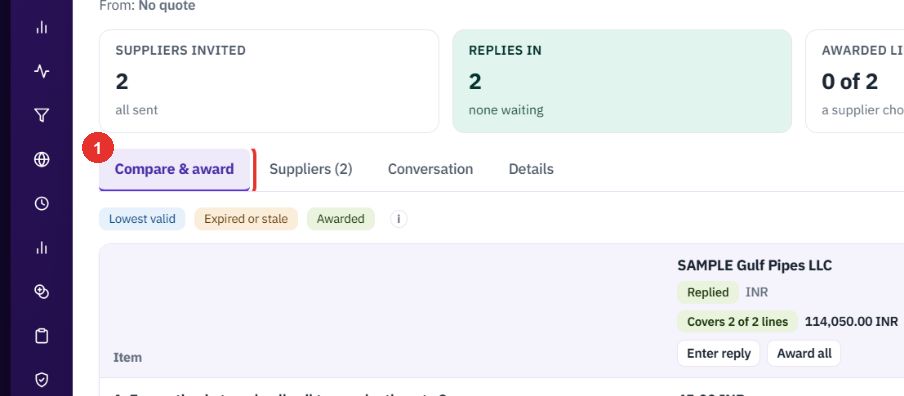
Once replies are in, read the suppliers side by side and choose a winner for each line.
Suppliers appear as columns, one line per row.
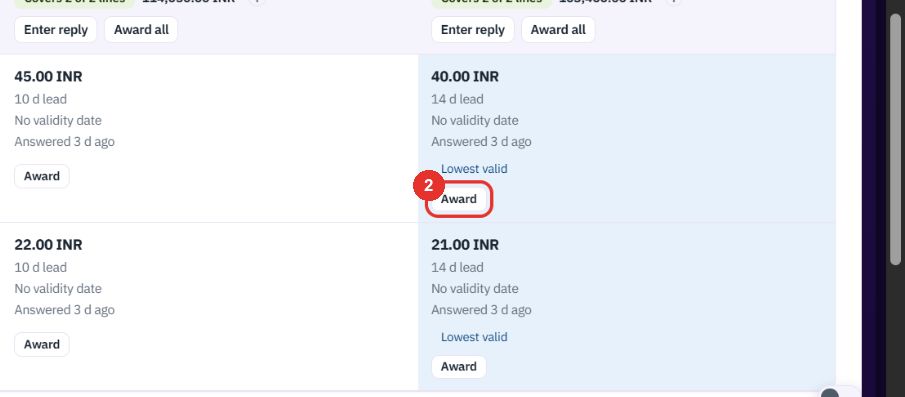
Each supplier cell shows the price, lead time, validity and when it was answered. Lowest valid marks the best price. Award picks that supplier for the line. This guide did not award.
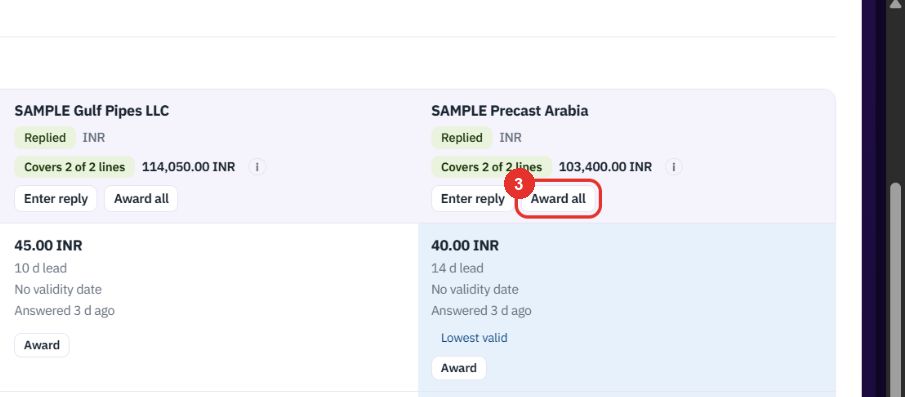
It awards every line the supplier covers. The header shows how many lines the supplier covers and their total.
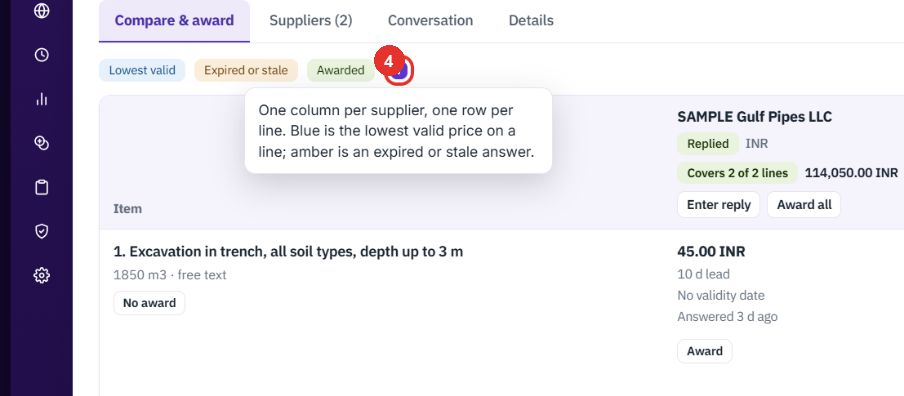
It explains the colours: one column per supplier, one row per line. Blue is the lowest valid price. Amber is an expired or stale answer.
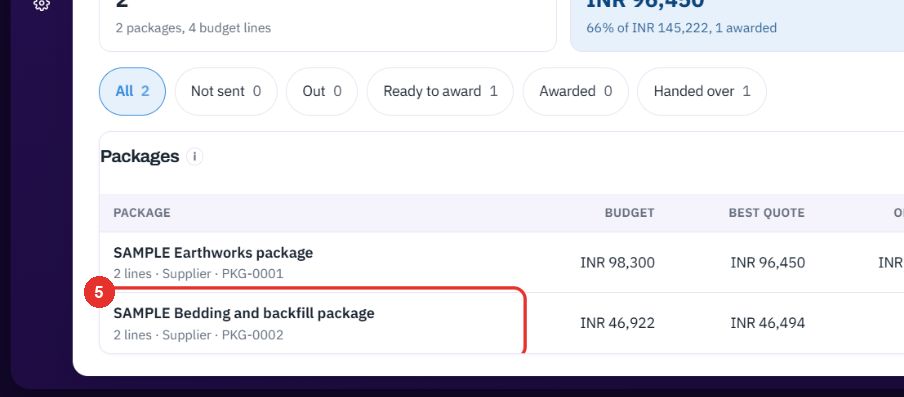
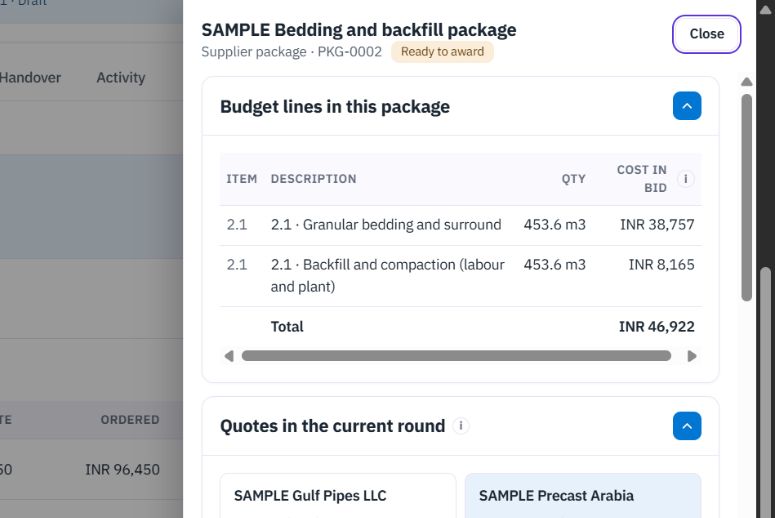
In a contract project the same quotes appear on a package, with Award package. The Contract projects guide covers it.
Twenty minutes on a live workspace, with your files and your team.