1
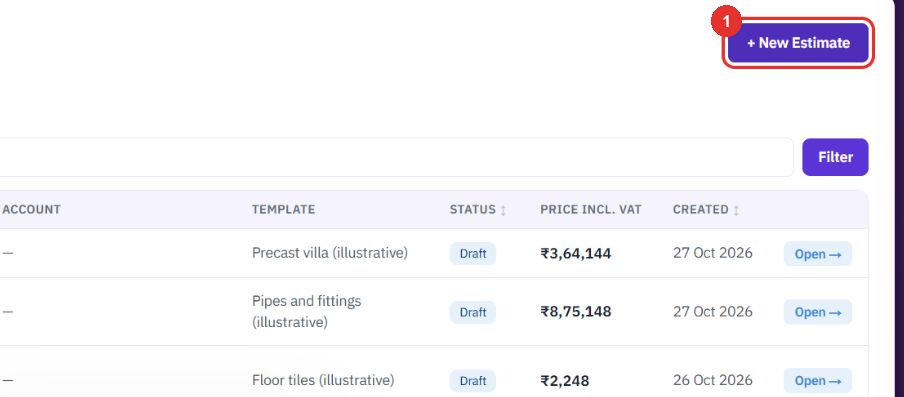
Click + New Estimate
The button is on the Estimates list.
Pick a template, enter the sizes and the margin, and read the price and the bill of materials. Use an estimate to price rows of a tender.
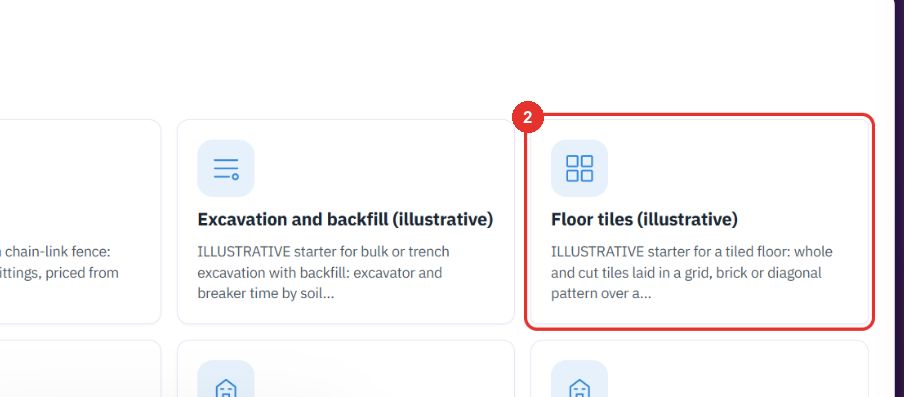
The example is the Floor tiles (illustrative) template.
The button is on the Estimates list.
"Choose a template. You can paste the customer's email on the next page." Here: Floor tiles (illustrative). Others include Chain-link fence, Pipes and fittings, Porta cabin and Precast elements.
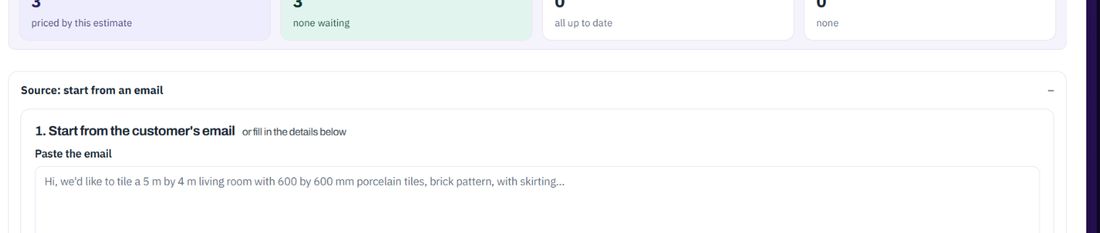
The section is closed by default. Open, it asks you to paste the customer's email, or you can fill in the details below.

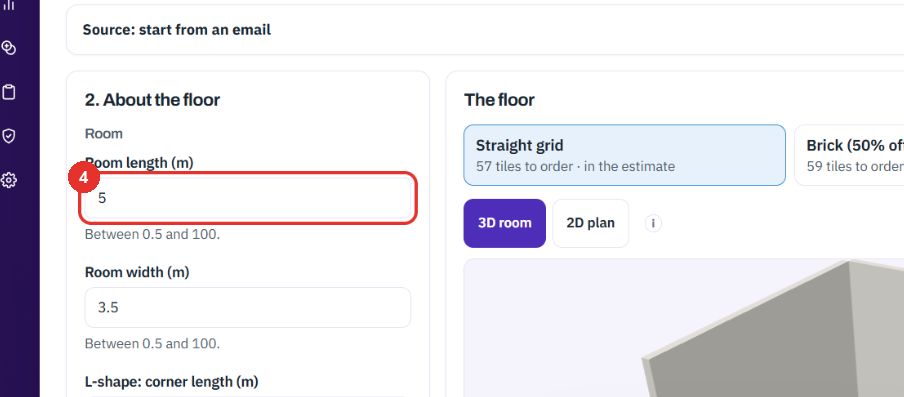
Under 2. About the floor enter the room, the tile and the layout. Each field shows its allowed range.
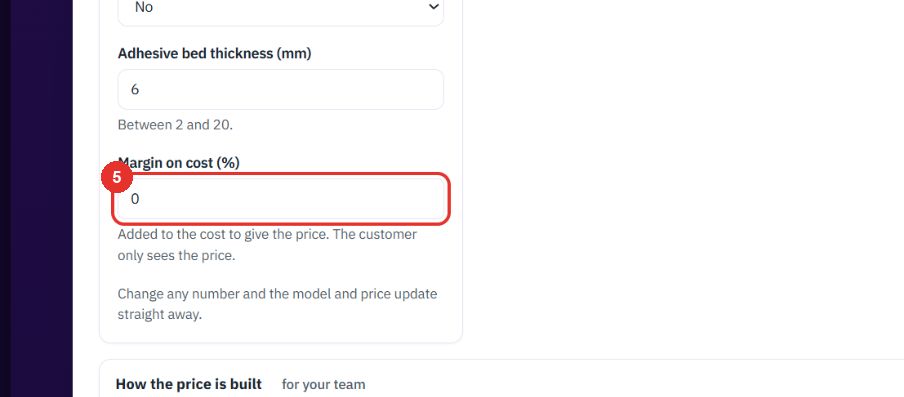
It is added to the cost to give the price. The customer only sees the price. Change any number and the model and the price update at once.
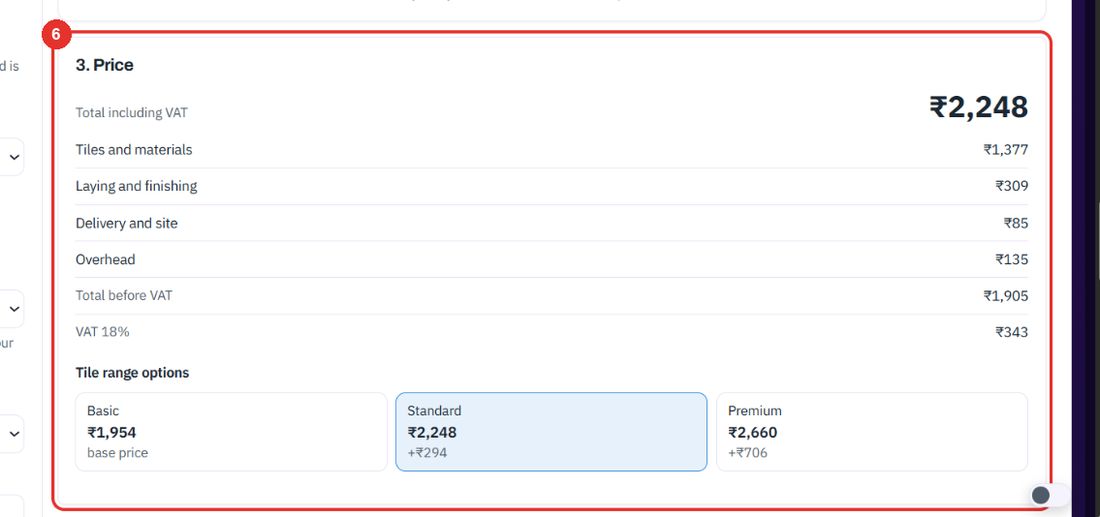
The total including VAT, then Tiles and materials, Laying and finishing, Delivery and site, Overhead, Total before VAT and VAT 18%. Tile range options compares Basic, Standard and Premium.
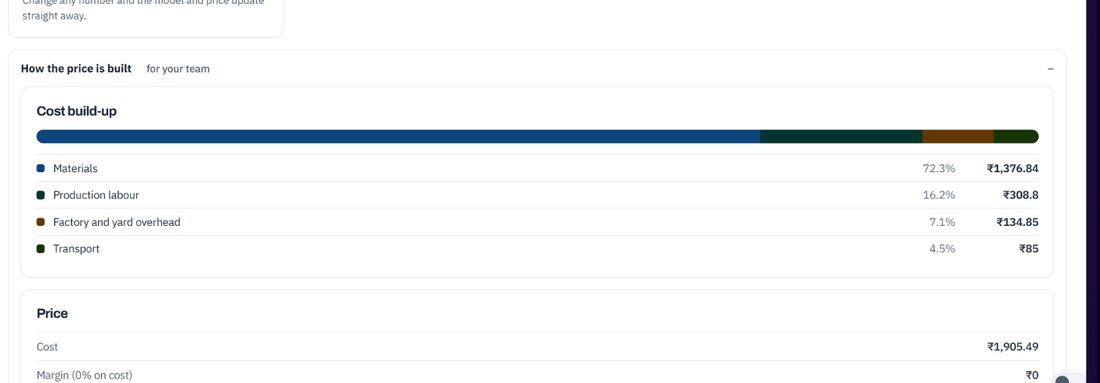
The section is for your team. Open, it shows the cost build-up as a bar and a list.

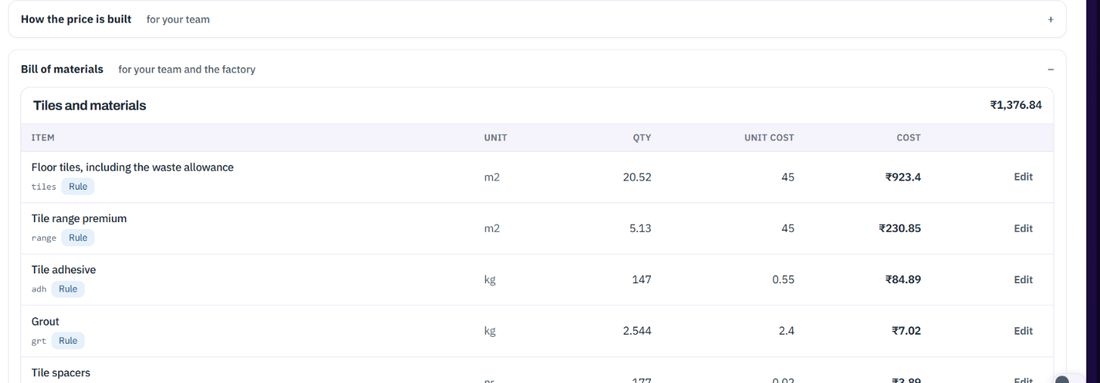
The section is for your team and the factory. Open, it lists each item with unit, quantity, unit cost and cost, and an Edit link.

An estimate can price rows of a tender BOQ. The Tender management guide shows the whole tender.
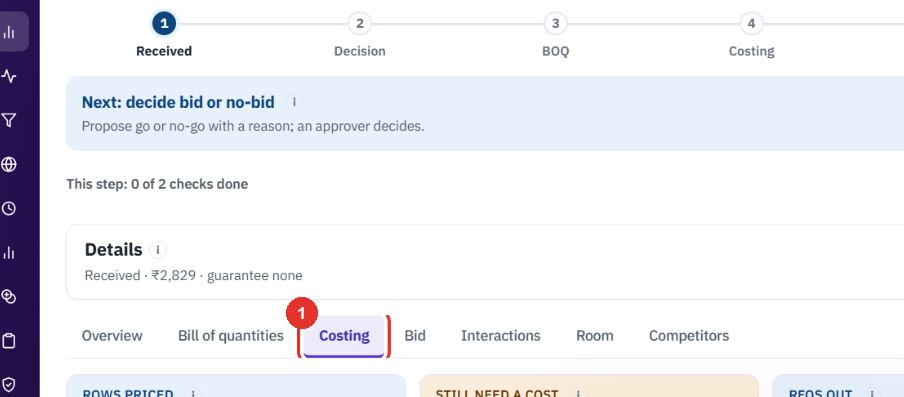
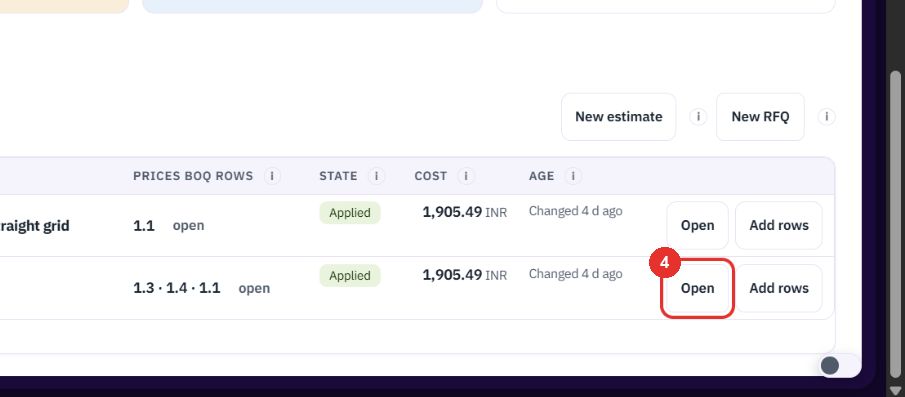
On the tender, the Costing tab lists estimates and RFQs as Cost sources.
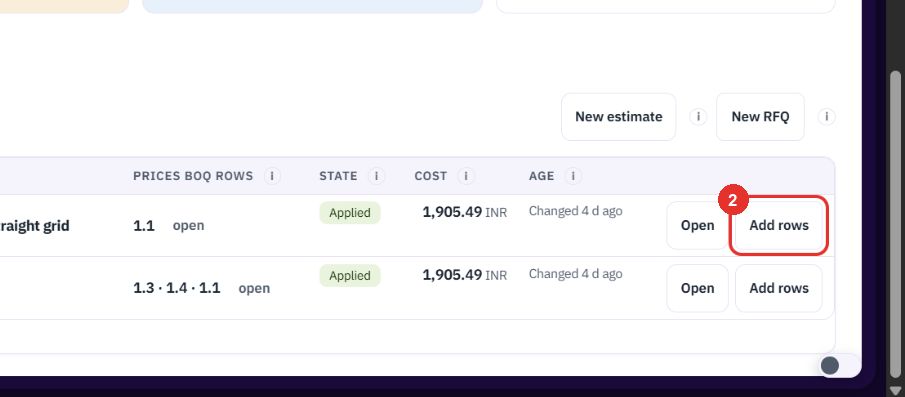
It gives an estimate more BOQ rows to price.
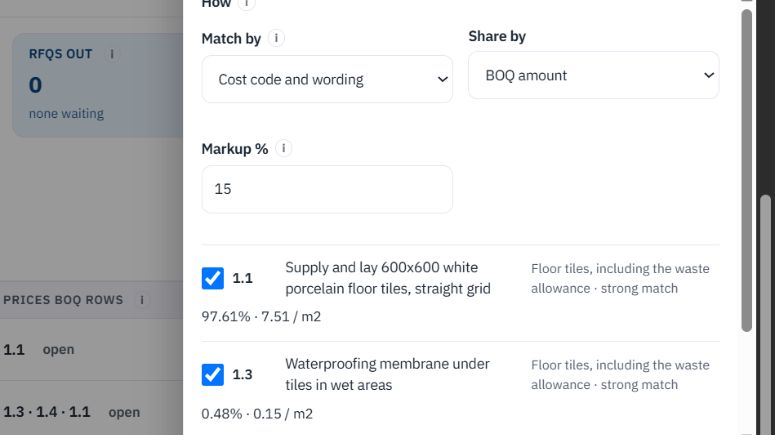
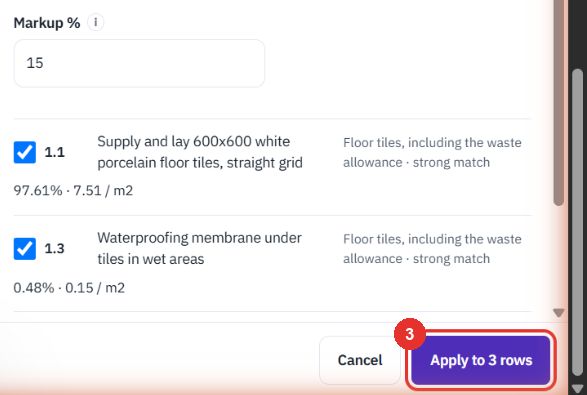
Applies the estimate's cost to the ticked rows, with the markup. This guide did not apply it.
It opens the estimate.
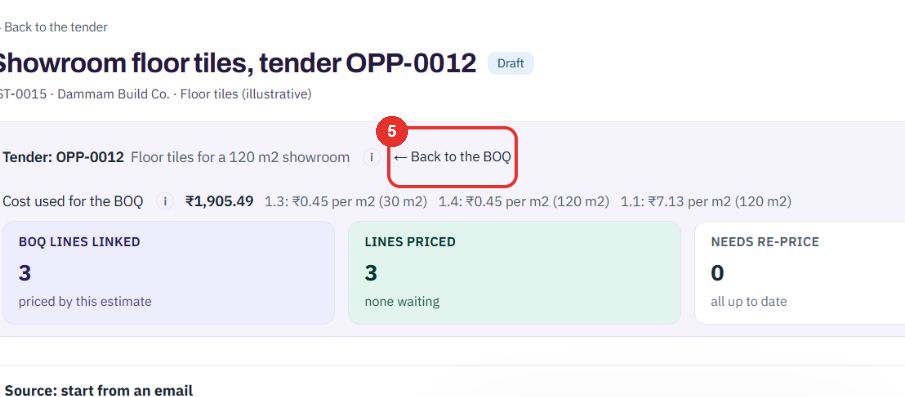
The estimate shows its tender at the top. Back to the BOQ returns you to the rows it prices.
Twenty minutes on a live workspace, with your files and your team.