1
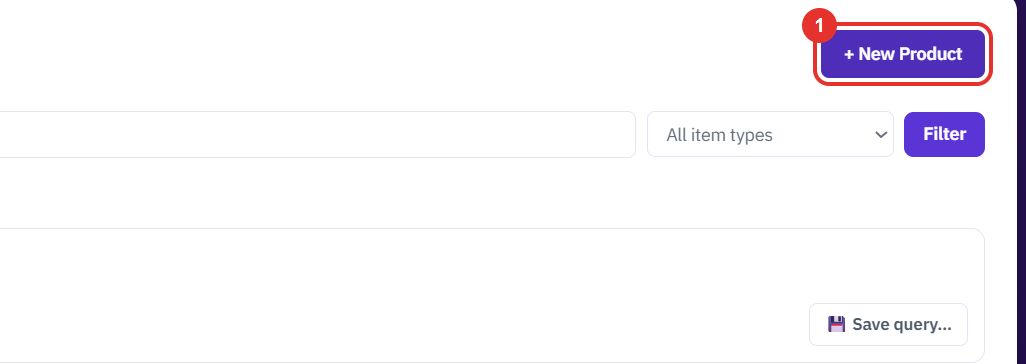
Click + New Product
The button is at the top right of Products.
Products are the items and services you sell. Keep the catalogue here so quotes, standard quotes and orders can pick from it and the pricing engine can price them.
Want the full chapter? Solution Guide, chapter 6: Platform and master data (PDF) · All documentation
Use this to add an item or service you sell to the catalogue.
The button is at the top right of Products.
This is the only required field. Use the name your customers will recognise.
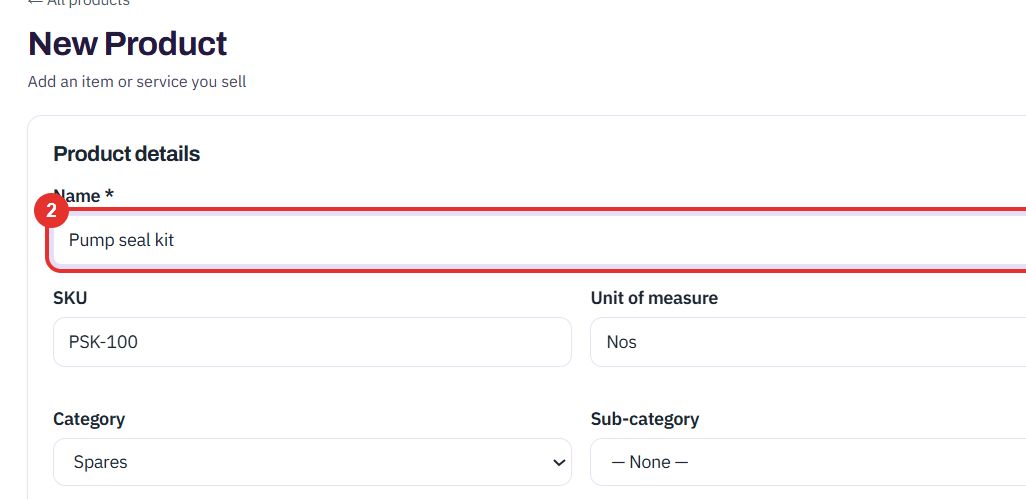
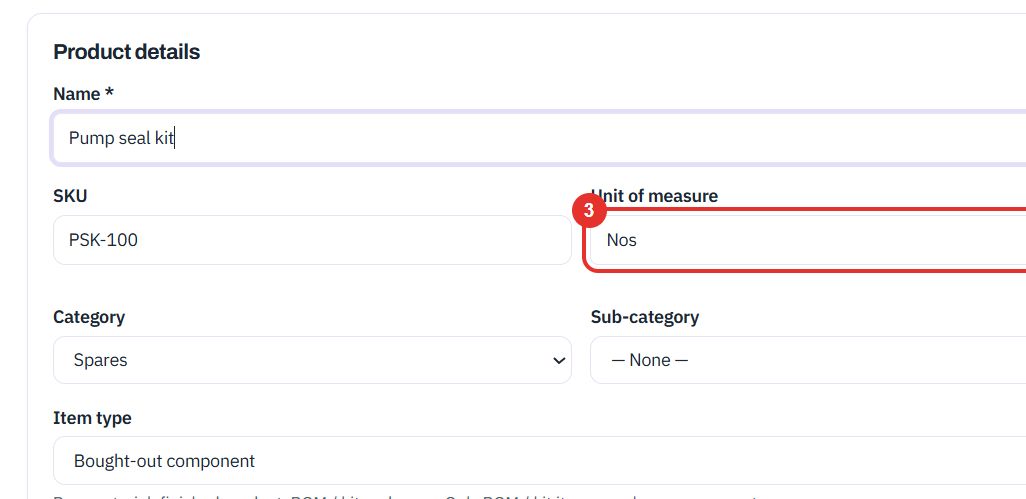
The SKU is your own item code. For the unit, type a short word such as Nos, Hrs, Job or Yr.
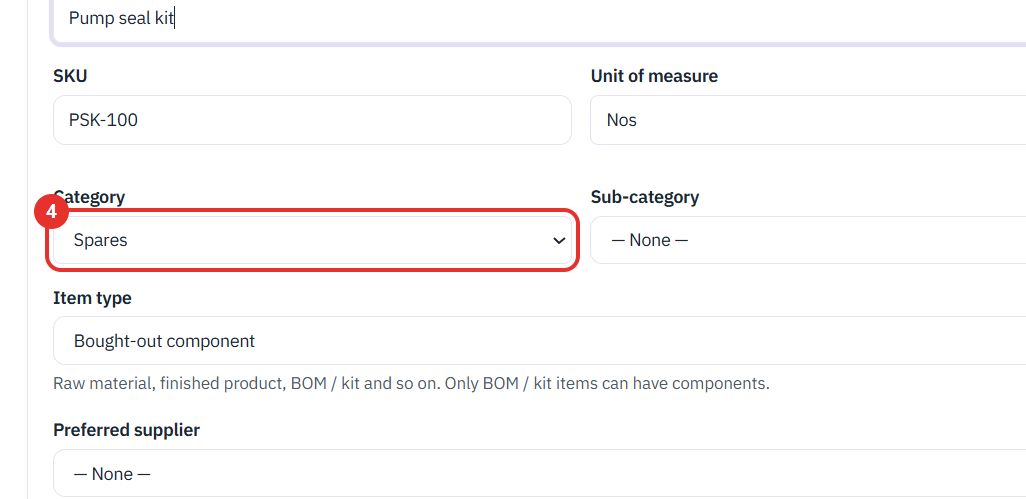
Pick a category. Sub-category next to it lists the sub-categories of the category you chose.
For example Finished product, Raw material, Service or BOM / kit. Only BOM / kit items can have components. Preferred supplier and Description follow.
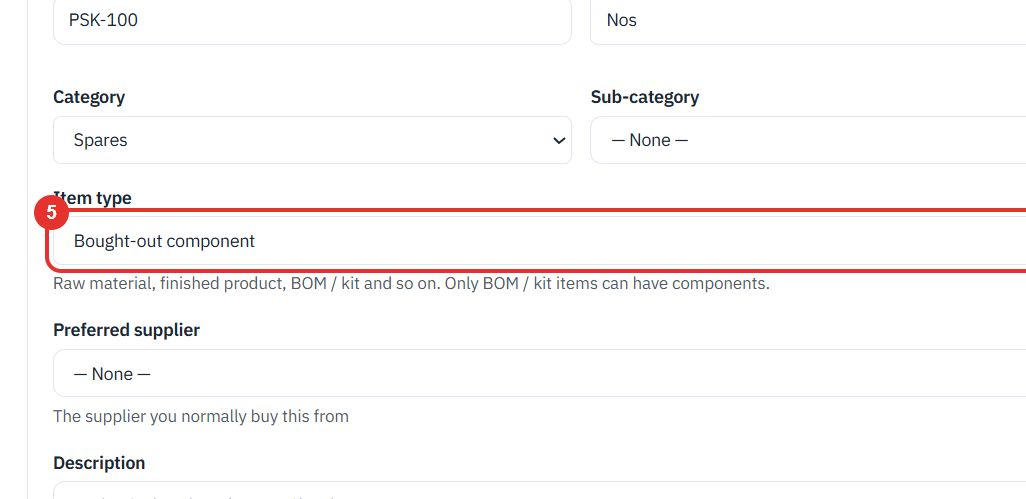
This is the price you quote to customers.
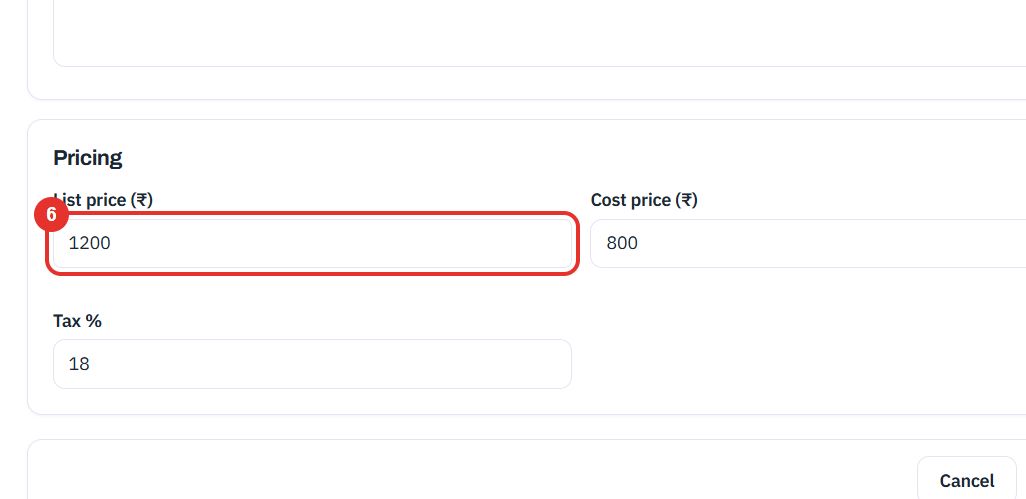
The cost price is your own internal cost. The pricing engine uses it to build a price.
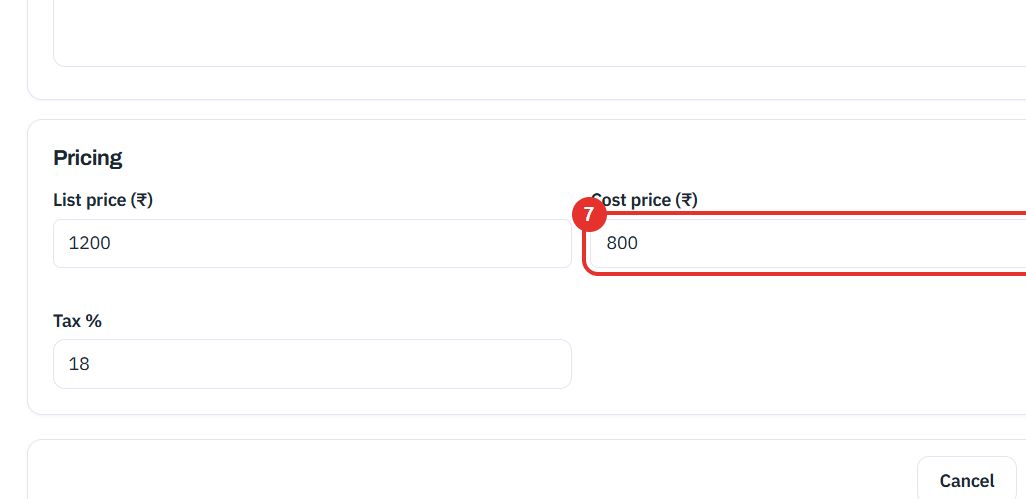
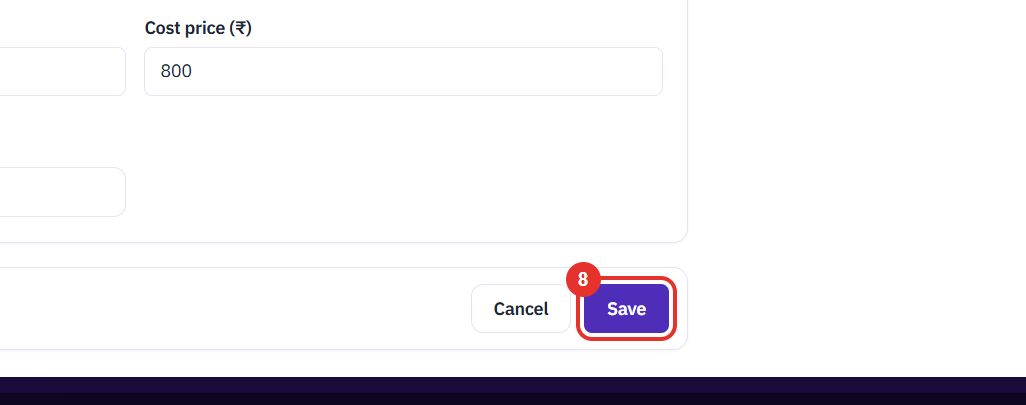
Cancel beside it leaves without saving.
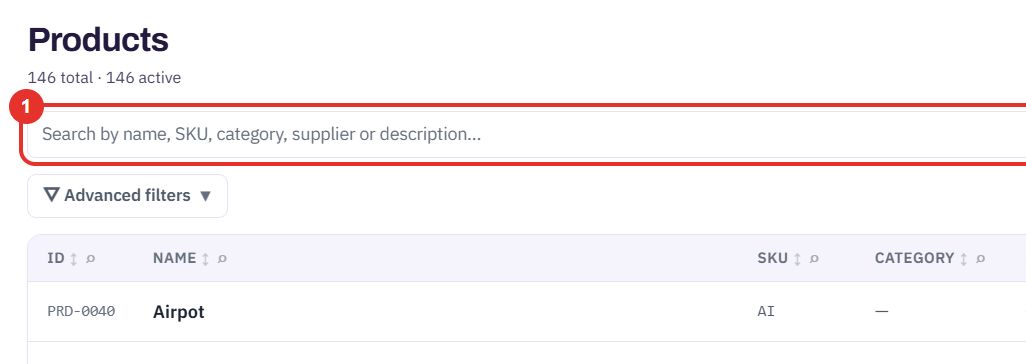
Use this to look up a product or list a group of them.
Search by name, SKU, category, supplier or description. The list narrows as you search.
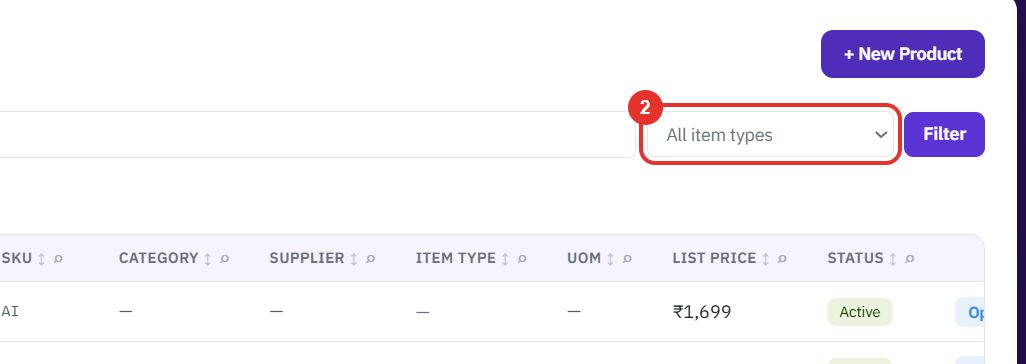
Use All item types to show only one kind, such as Raw material or BOM / kit. Click Filter to apply it.
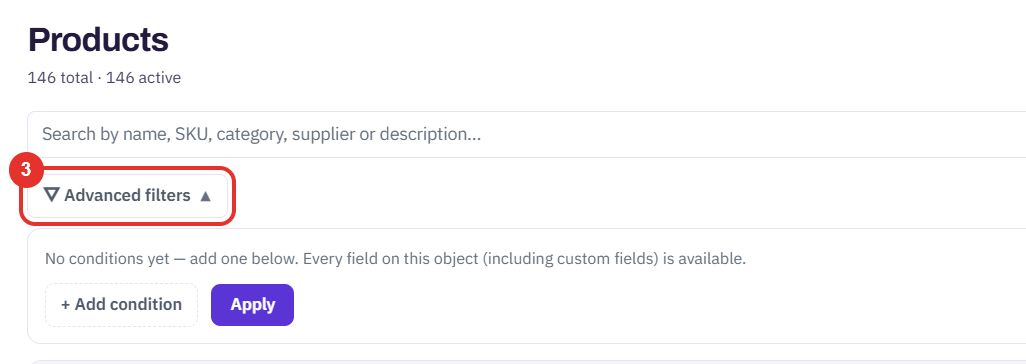
The panel says "Every field on this object (including custom fields) is available." It has + Add condition, Apply and Clear.
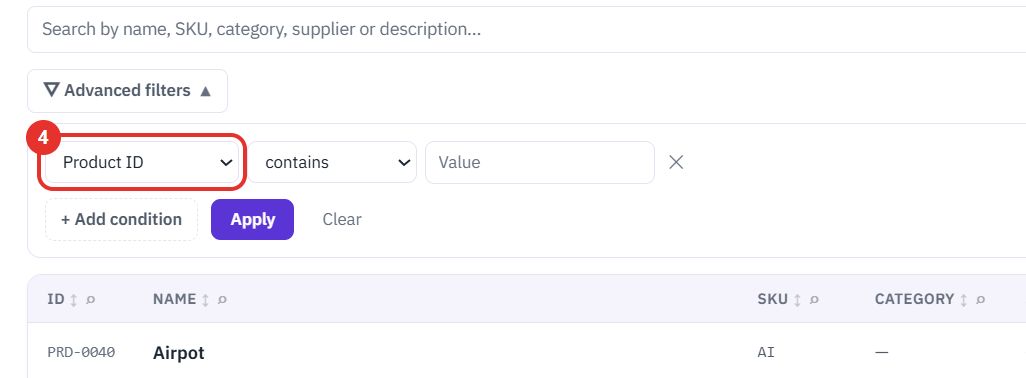
Choose a field such as Name, List price, Cost price or Unit of measure, then an operator such as contains, then a value.
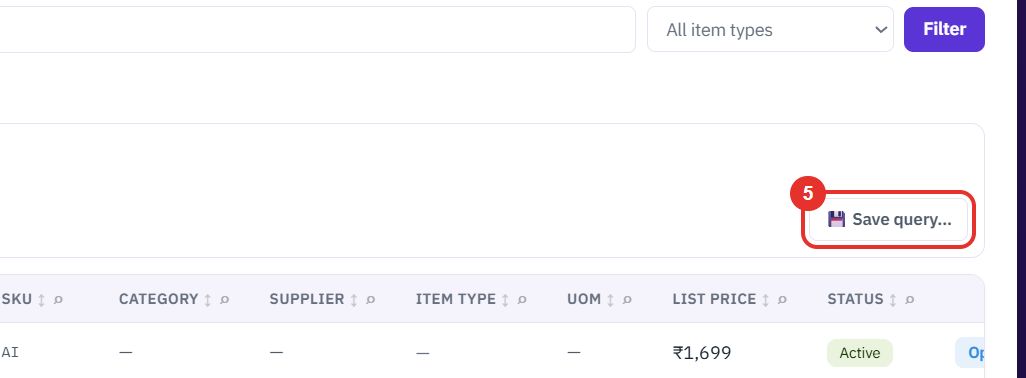
Save the filter so you can use it again.
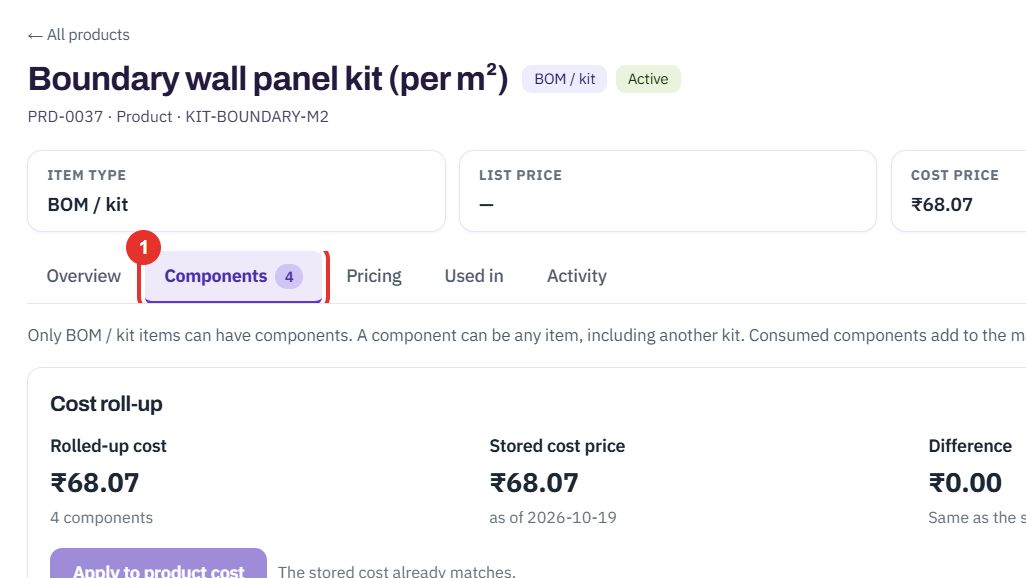
Use this on a BOM / kit product, which is made of components. Open it with Open → at the end of its row in the list.
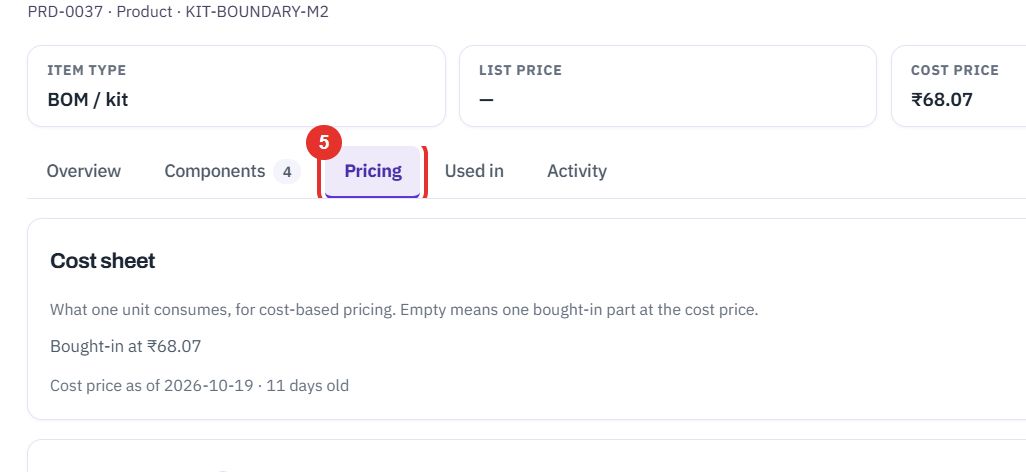
The number in the tab is the count of components. The tabs on a product are Overview, Components, Pricing, Used in and Activity.
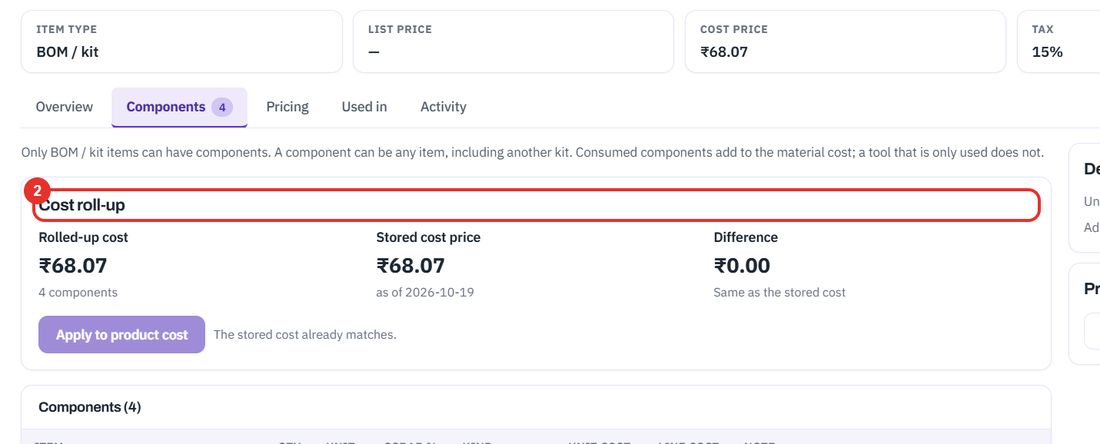
It adds up the cost of the components and compares it with the stored cost price. Apply to product cost is greyed out while the two match.
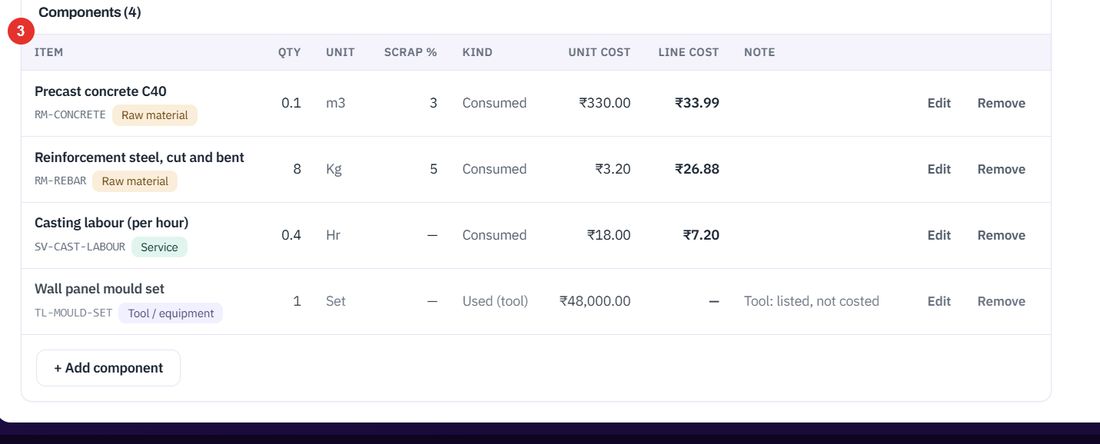
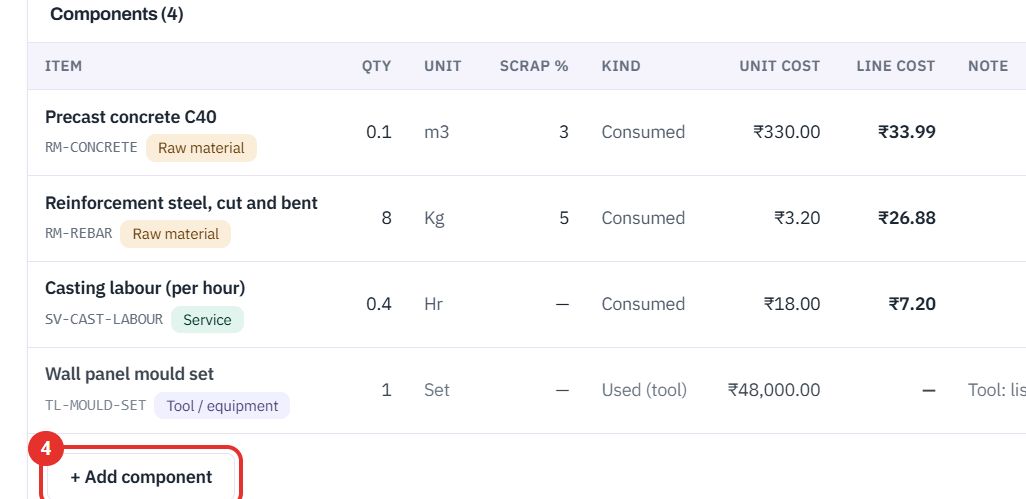
Each row has the quantity, unit, SCRAP %, KIND, unit cost and line cost. Consumed components add to the cost. A tool marked Used (tool) is listed but not costed. Edit and Remove are at the end of each row.
Use it to add another item to the kit. A component can be any item, including another kit.
Cost sheet says what one unit consumes, for cost-based pricing. When it is empty the product counts as one bought-in part at its cost price.
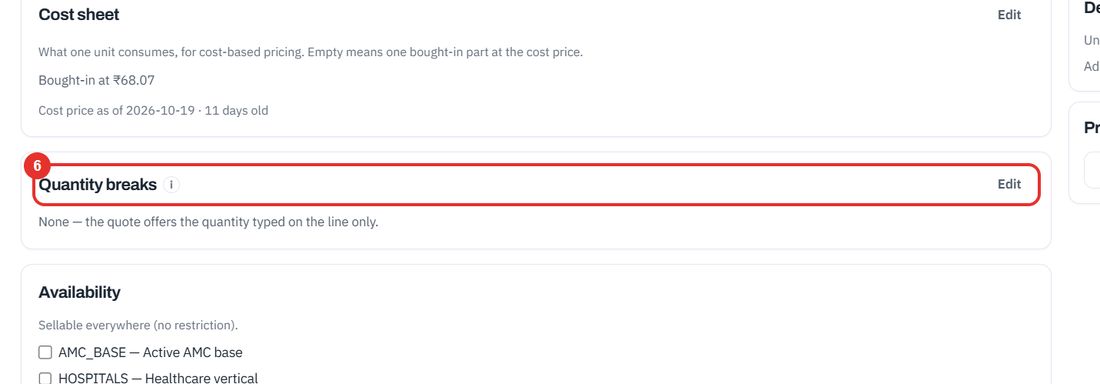
Quantity breaks give a different price for a larger quantity. None means the quote offers the quantity typed on the line only. Edit changes them.
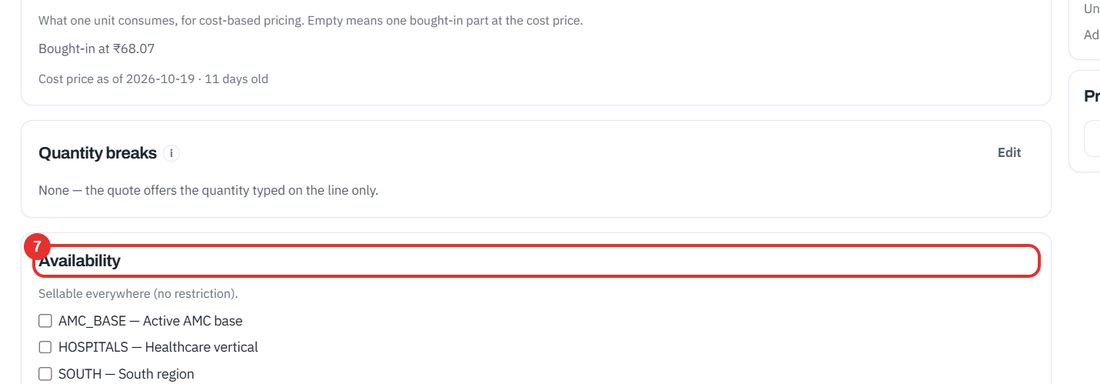
By default a product is sellable everywhere. Tick a segment, such as a region or a vertical, to restrict the product to it.
Twenty minutes on a live workspace, with your files and your team.