1
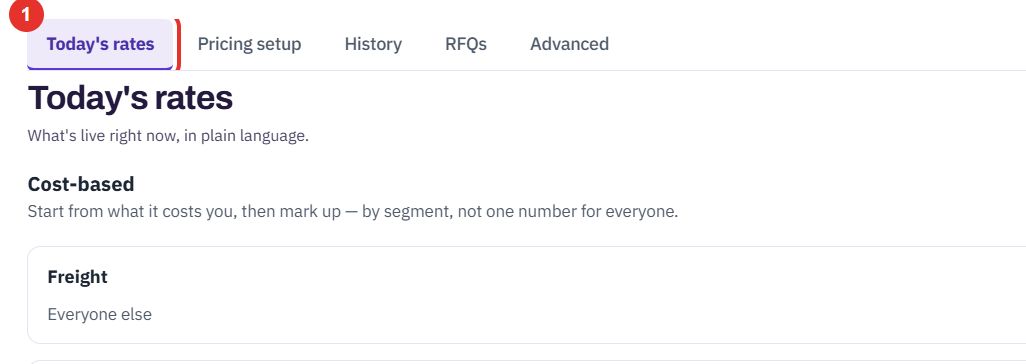
Click Today's rates
The Pricing area has five tabs: Today's rates, Pricing setup, History, RFQs and Advanced. Today's rates says what is live right now, in plain language.
The pricing engine builds a price from your costs and rules instead of a typed number. Here you read today's rates, see the working behind a price, look back at older rates and open the rules themselves.
Use this to see which numbers the pricing engine uses right now.
The Pricing area has five tabs: Today's rates, Pricing setup, History, RFQs and Advanced. Today's rates says what is live right now, in plain language.
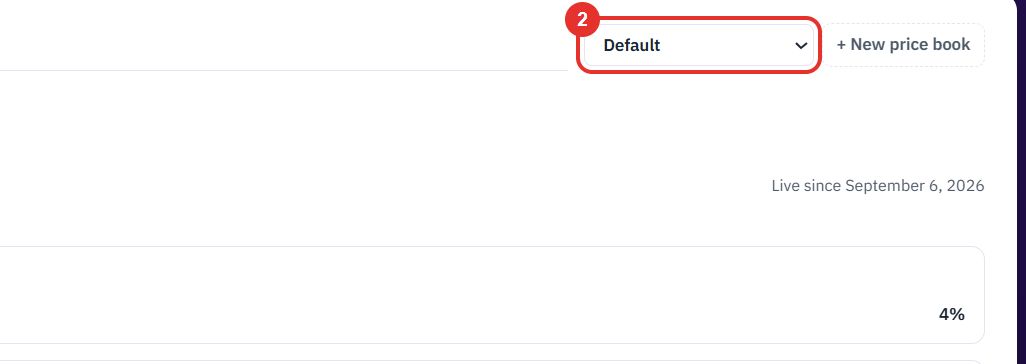
The selector at the top right lists your price books, for example Default, Catalogue 2026, Cost Plus and Formula Pricing. Each book has its own rates. + New price book beside it adds another.
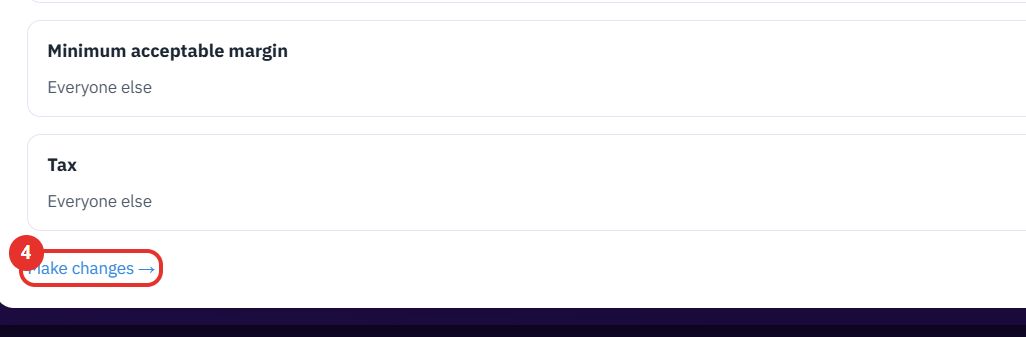
Each card is one number the engine uses: Freight, Handling, Margin, Customer discount, Minimum acceptable margin and Tax. Everyone else is the normal rate. A line such as When Region is Karnataka is a different rate for one case.

The link at the foot of the page opens Pricing setup. A banner then says You have unsaved pricing changes and offers Discard and Go live.
Use this to explain a price to a customer, or to check one before you send it. It works on the Line items tab of a standard quote.
Pick a product on the line, then click Price in the PRICE column. The rate fills in and the button changes to Engine.
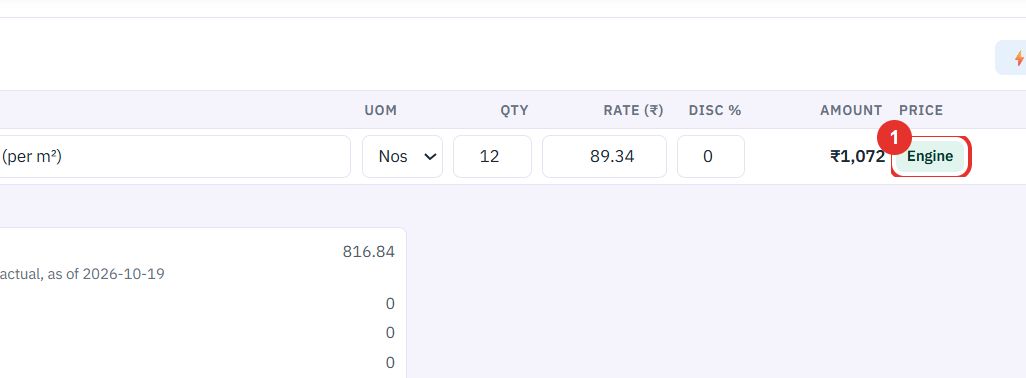
This prices every line in one go.
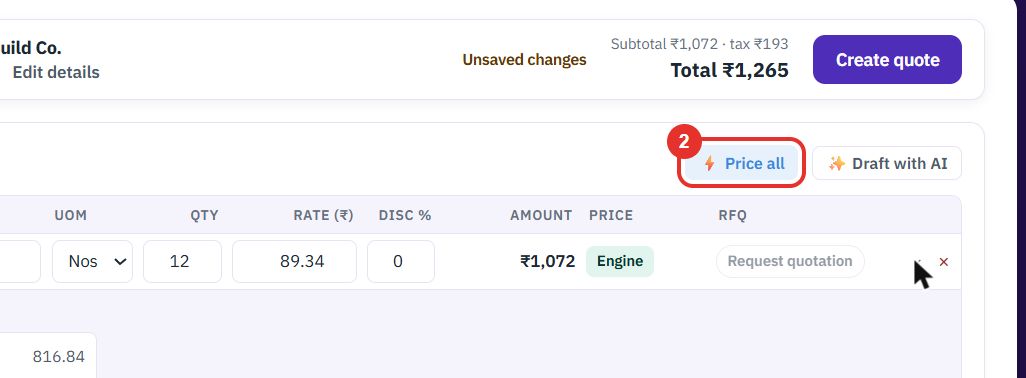
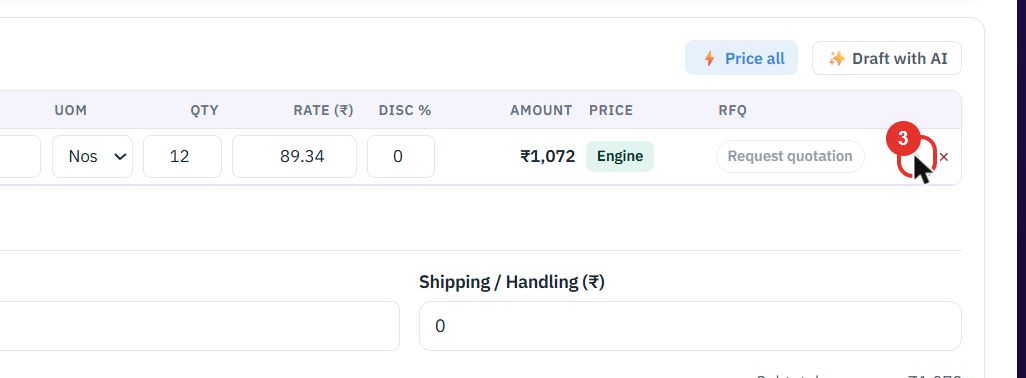
The small › at the right opens the working behind the price.
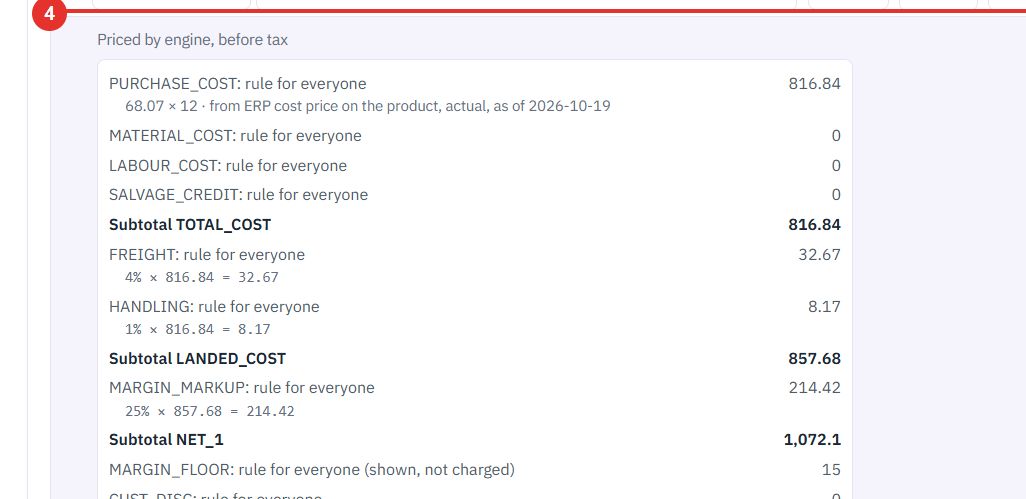
The panel says Priced by engine, before tax. Each row is one rule from the price book, such as PURCHASE_COST, FREIGHT and MARGIN_MARKUP, with a grey line showing the sum, for example "25% × 857.68 = 214.42". The first row also says where the cost came from.
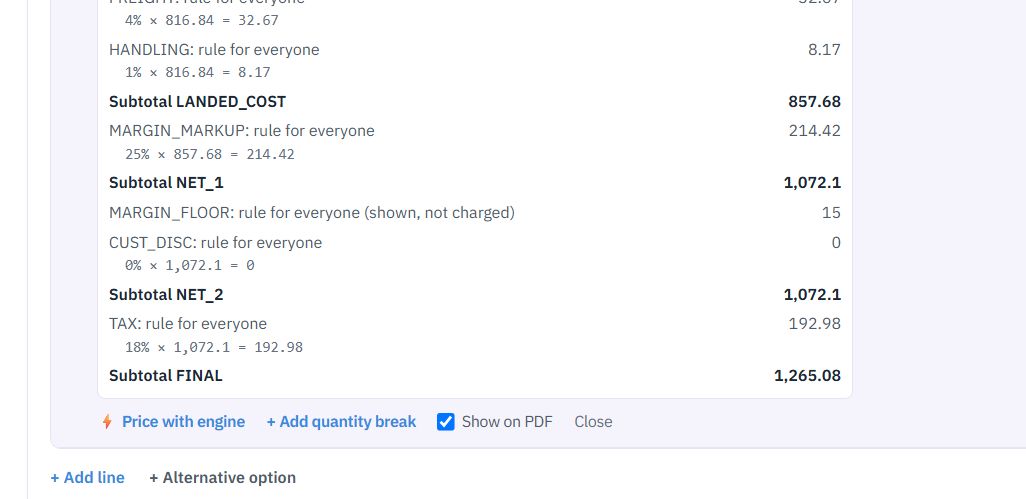
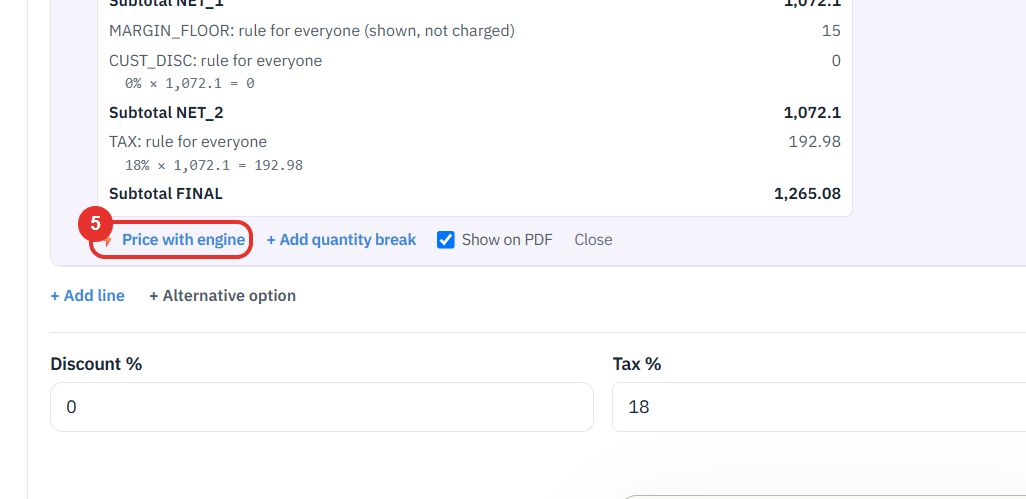
At the foot of the panel. Use it to price the line again after you change the quantity.
Use this to find which rates applied when an older quote was priced.
The page says "Every version that's gone live, and what was live on any date."
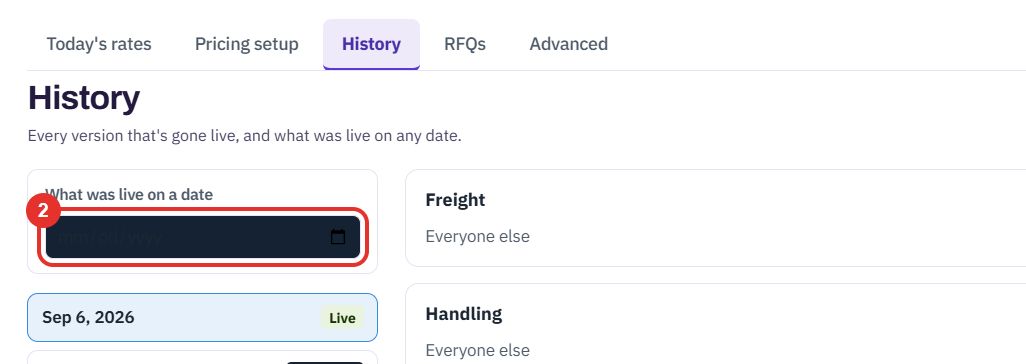
Use What was live on a date to look up any day. The rates for that day show on the right.
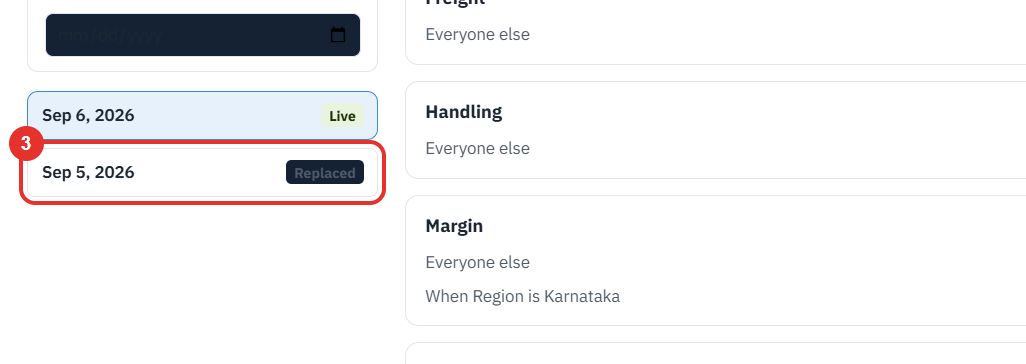
The list under the date shows each version that went live. The current one is tagged Live and the earlier one Replaced. Click one to see its rates.
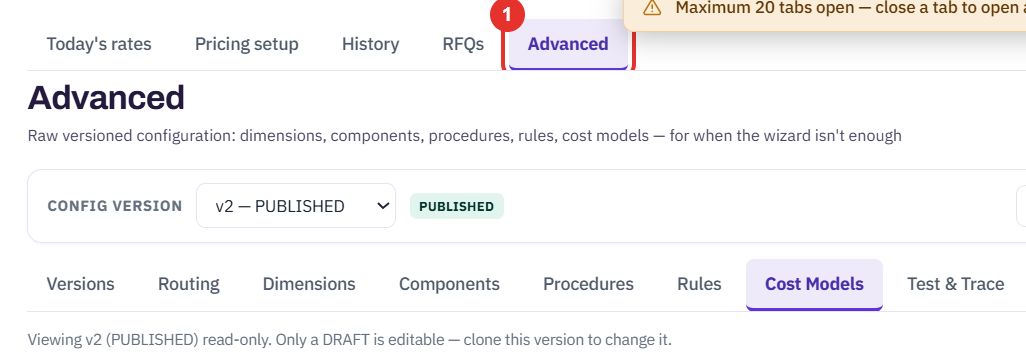
Use this when the plain pricing setup is not enough, or to test a price. Reading is safe; only a draft can be edited.
The page holds the raw configuration: dimensions, components, procedures, rules and cost models. CONFIG VERSION at the top shows v2 — PUBLISHED.
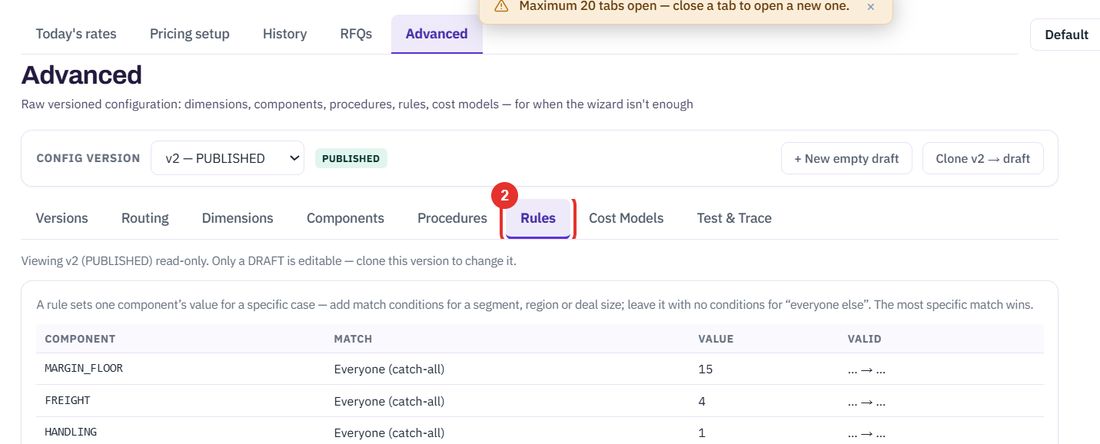
Each rule sets one component's value for one case. A row with no conditions reads Everyone (catch-all). The most specific match wins, so MARGIN_MARKUP is 25 for everyone and 10 for region: Karnataka.
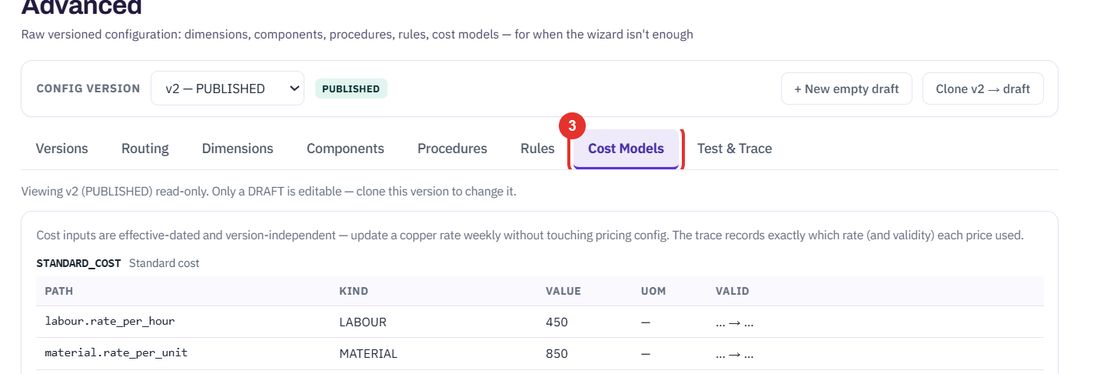
These are the cost inputs, such as the labour rate and the purchase unit cost. They carry their own dates, so you can update a rate without touching the pricing configuration.
Paste a sample document as JSON, with its attributes and lines.
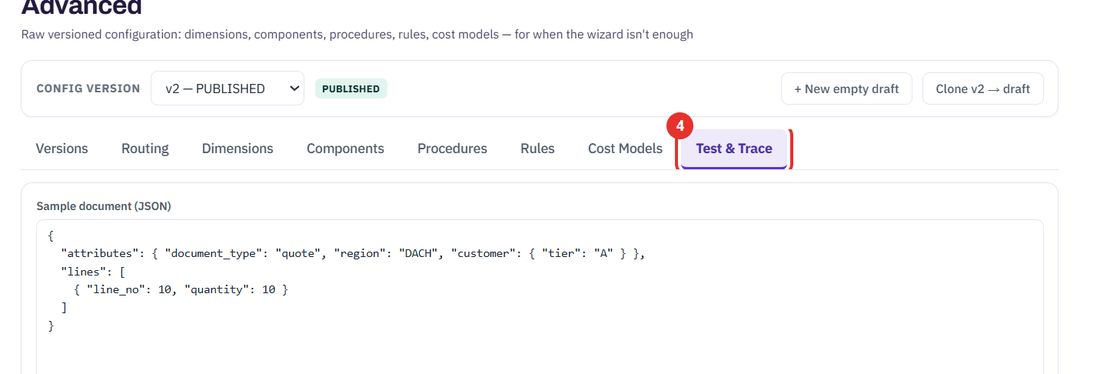
Choose the version, an optional procedure and a date, then click Price it to price the sample.
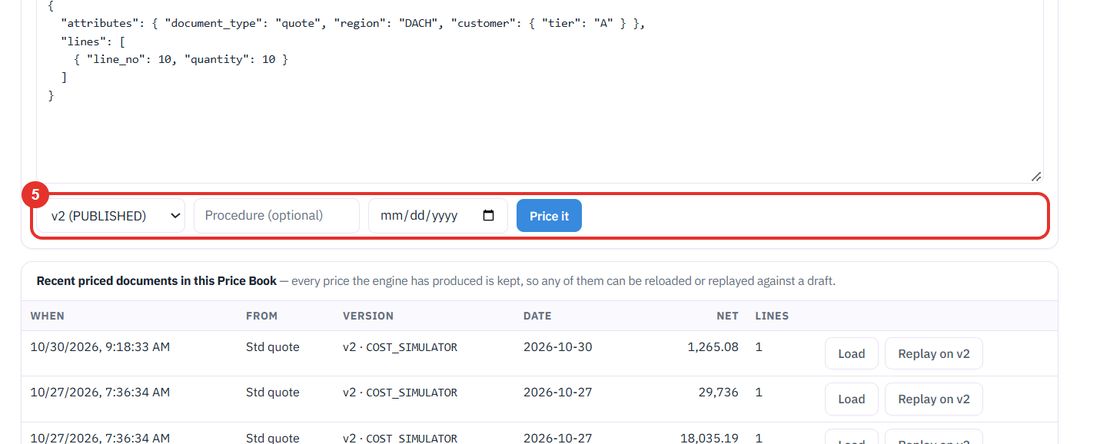
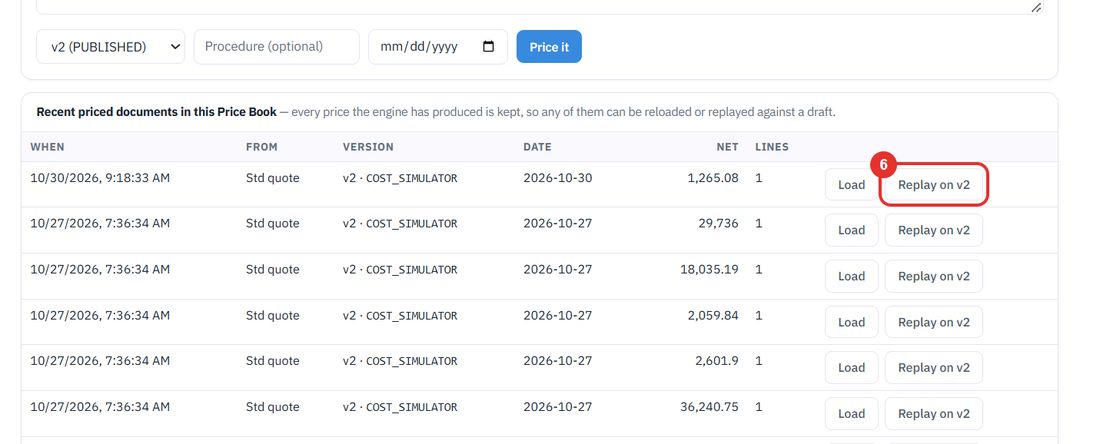
Every price the engine has produced is kept in this list. Load reloads one. Replay on v2 prices it again on the published version.
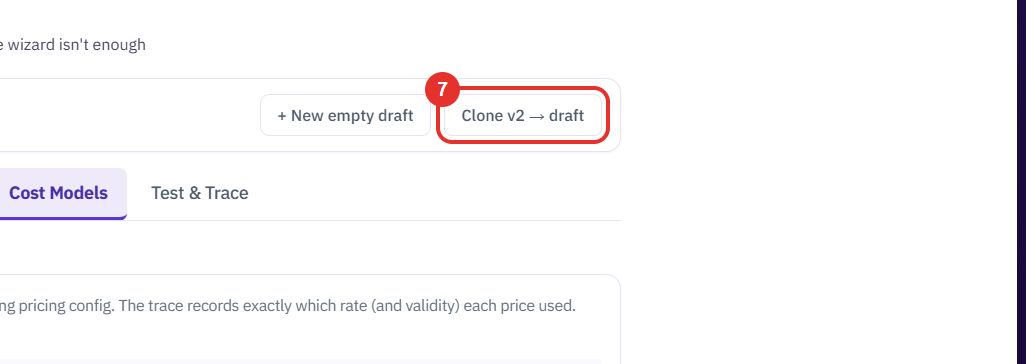
To change a rule, clone the published version into a draft and edit the draft. + New empty draft starts from nothing.
Twenty minutes on a live workspace, with your files and your team.