1
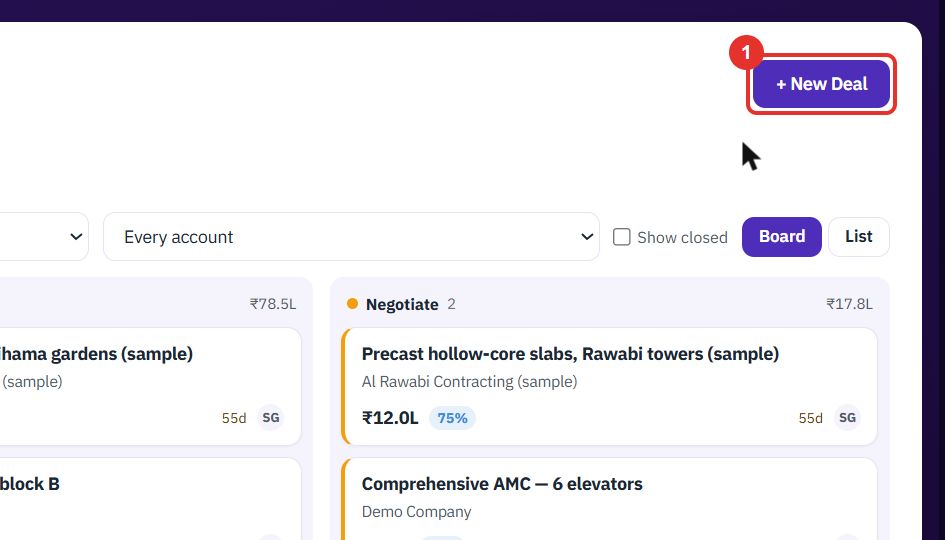
Click + New Deal
The button is at the top right of the Pipeline page. The form opens on its own page.
Add a deal, see all open deals on the board or in the list, and open one to check its amount, team and stage. Each step shows the exact button to click.
Want the full chapter? Solution Guide, chapter 2: Sales and tenders (PDF) · All documentation
Do this when you start working a sale with a customer.
The button is at the top right of the Pipeline page. The form opens on its own page.
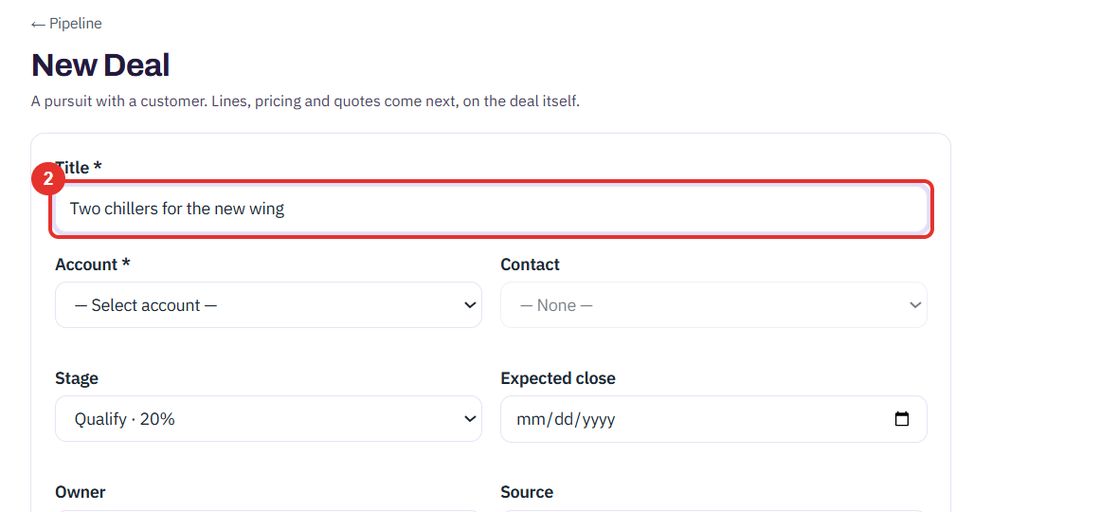
Title and Account are required. Lines, pricing and quotes come next, on the deal itself.
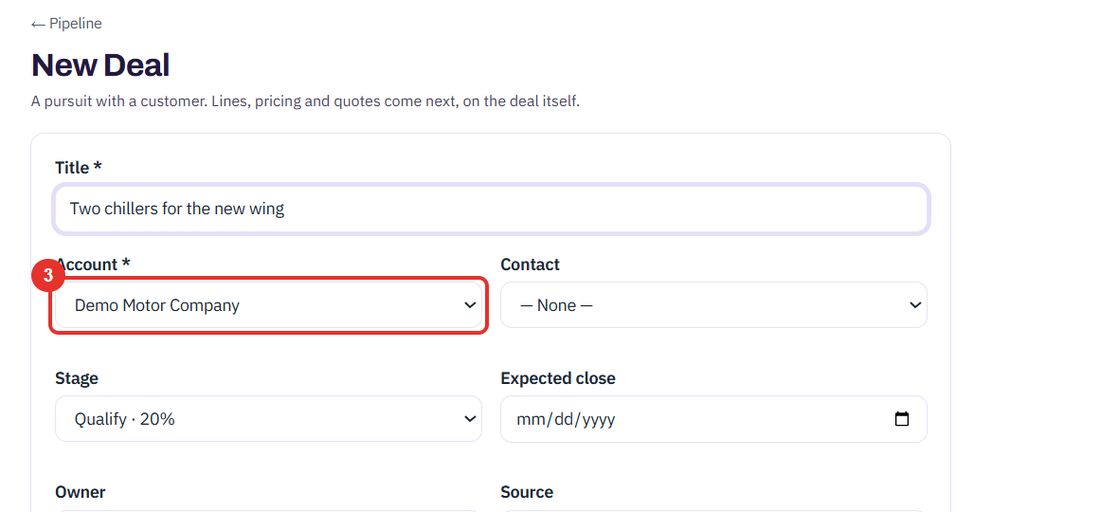
Pick the customer. Contact next to it is optional.
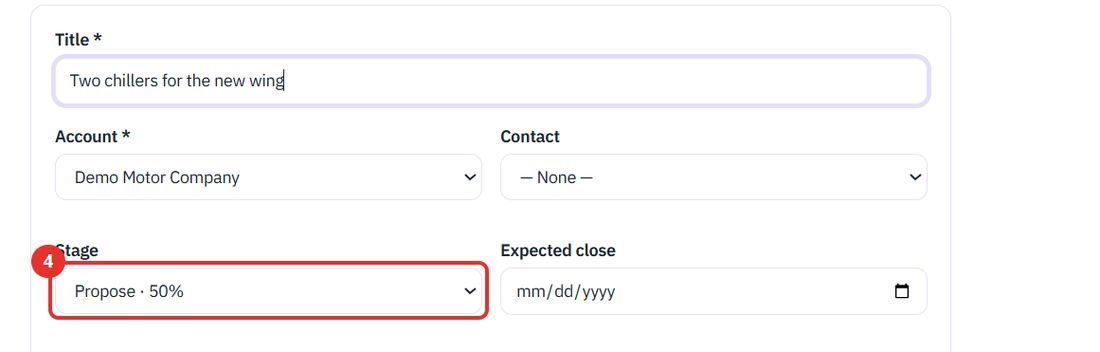
The list has Qualify · 20%, Propose · 50% and Negotiate · 75%. The percentage is the chance of winning at that stage. Expected close, Owner and Source follow.
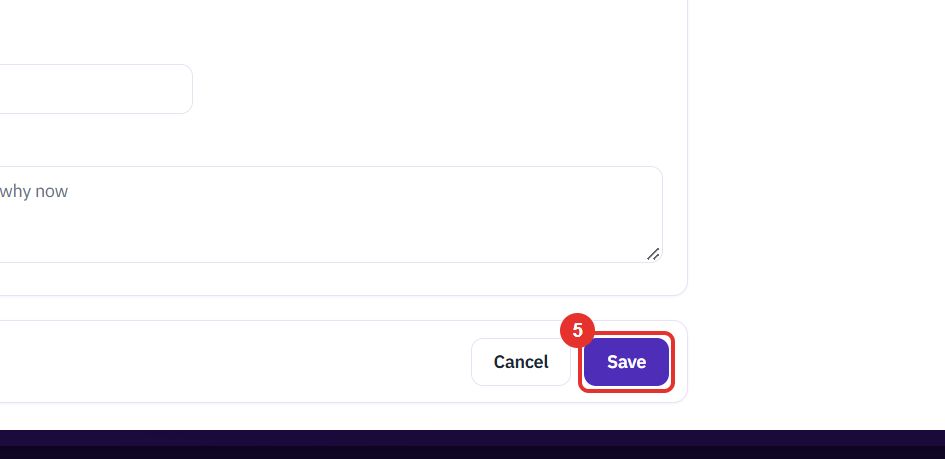
Save is at the bottom. Cancel leaves without saving.
Do this to see where every open deal stands.
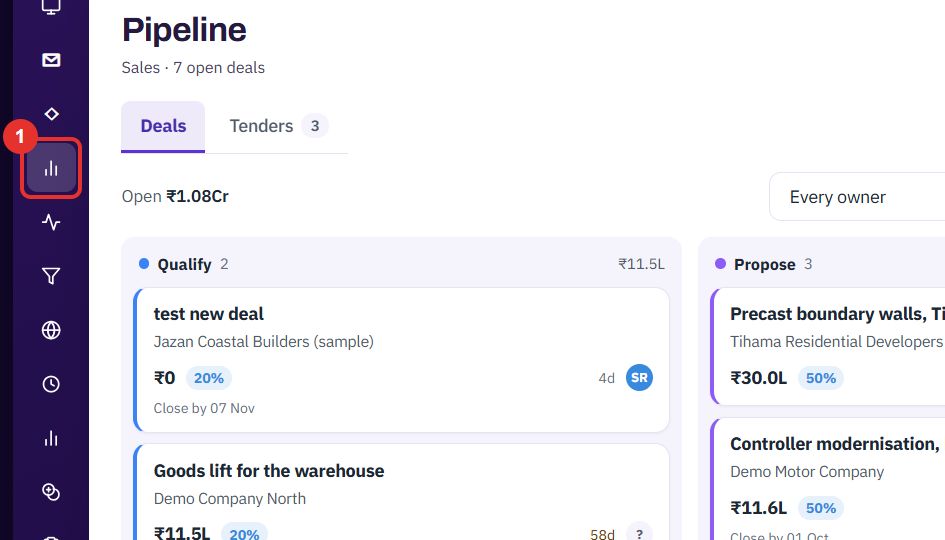
The chart icon opens the Pipeline. The Deals tab shows the open deals; Tenders is the other tab.
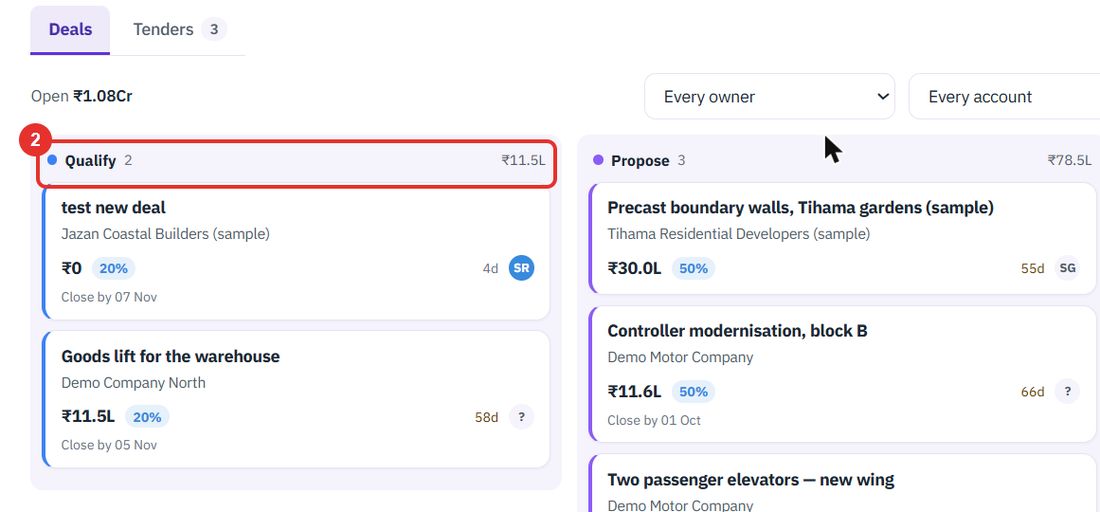
Each column is a stage: Qualify, Propose and Negotiate. The header shows how many deals it holds and their total value. Each card shows the deal, the account, the amount and the chance.
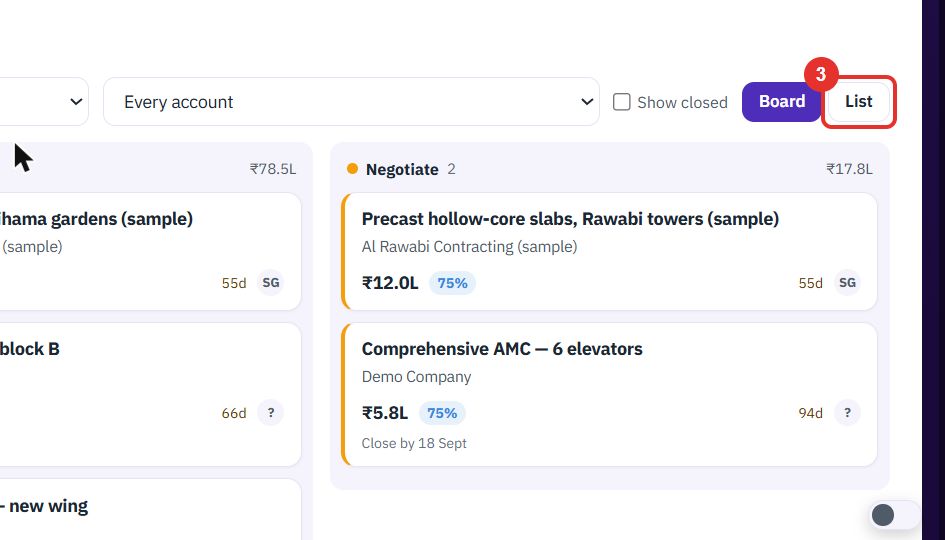
The deals show as rows with Stage, Amount, Prob., Owner, Days and Close by. Click Board to go back.
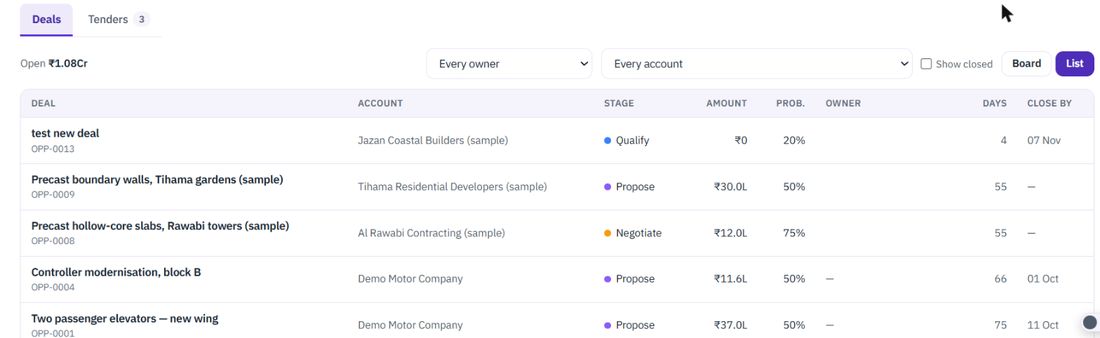
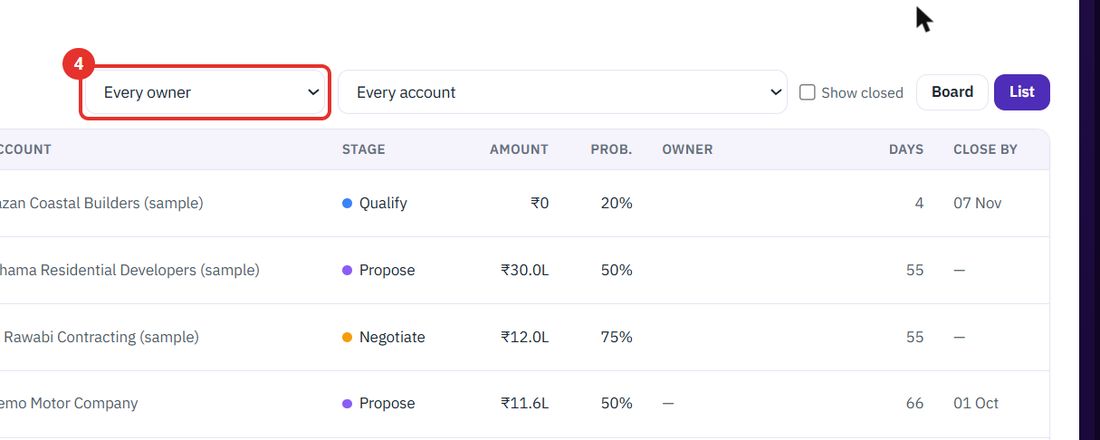
Pick one person or one customer. The board and the list both follow.
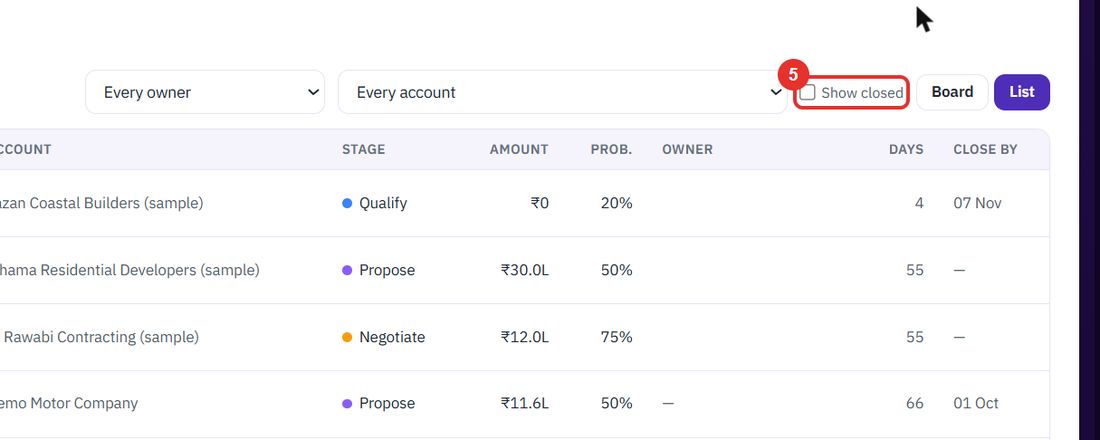
Won and lost deals are hidden until you tick it.
Do this when you work a deal day to day. The guide shows each control and does not save anything.
The deal page opens.
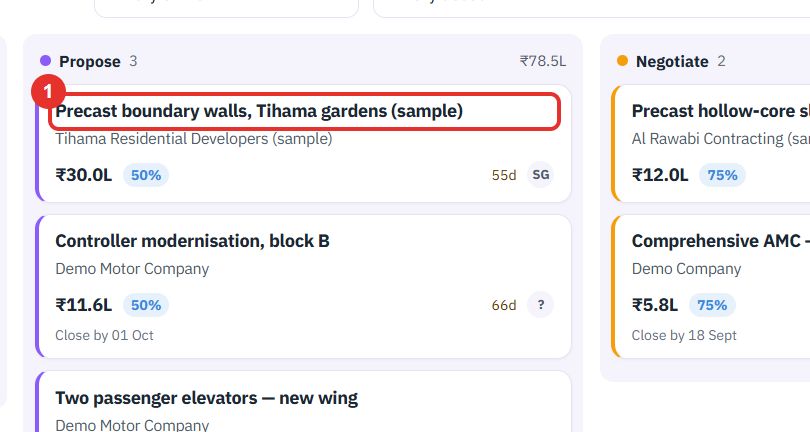
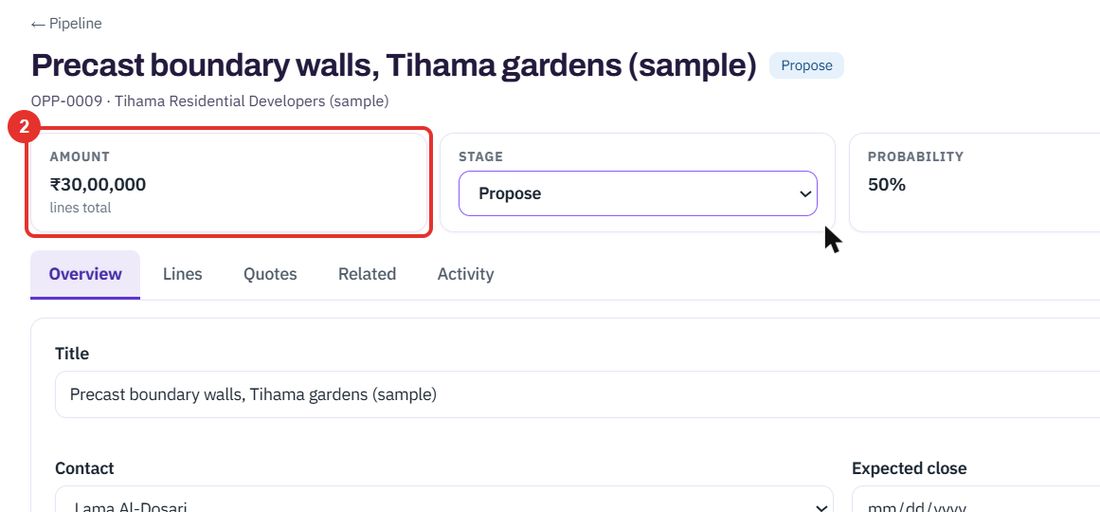
The amount is the total of the deal's lines. The page also shows Stage, Probability and Owner.
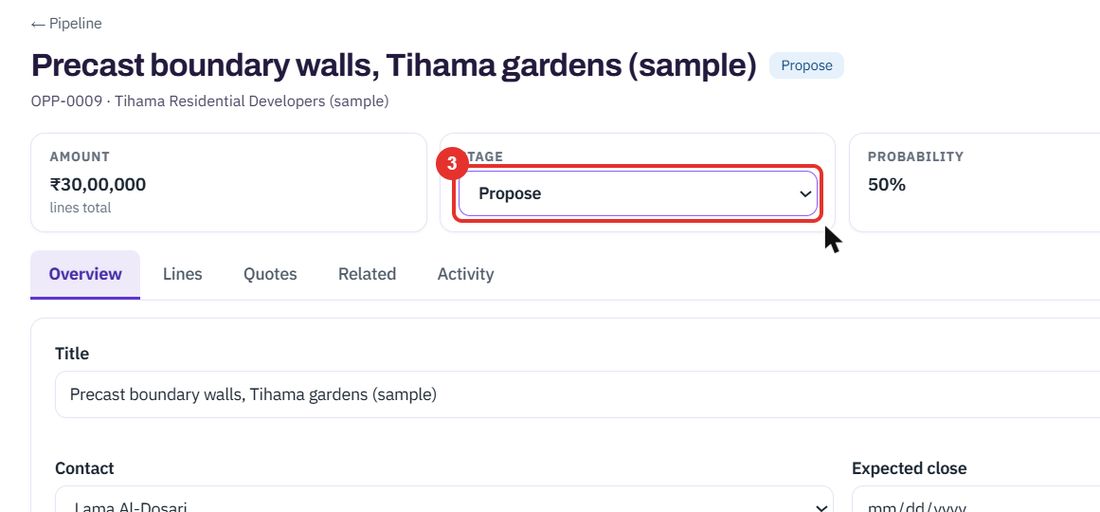
The list has Qualify, Propose, Negotiate, Won and Lost. Choose Won or Lost only when the deal is finished.
It sits under TEAM, at the bottom of the Overview tab.
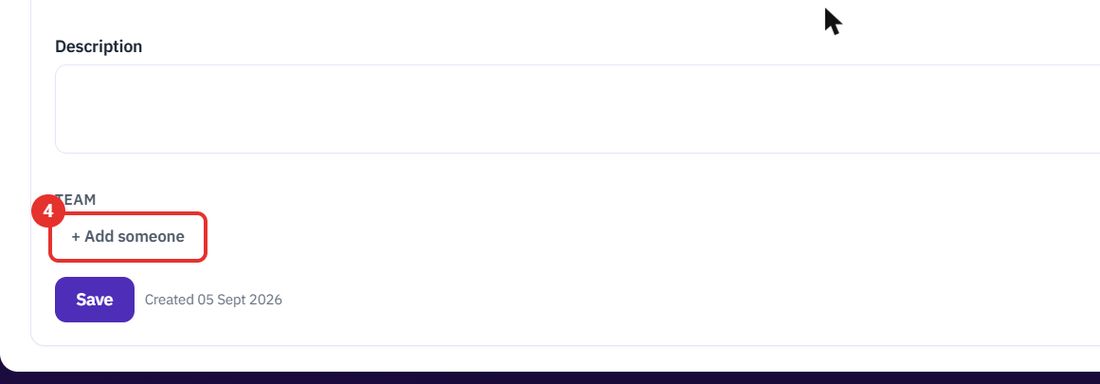
A new row appears with a list of people and a list of roles. The × at the end of the row removes it.

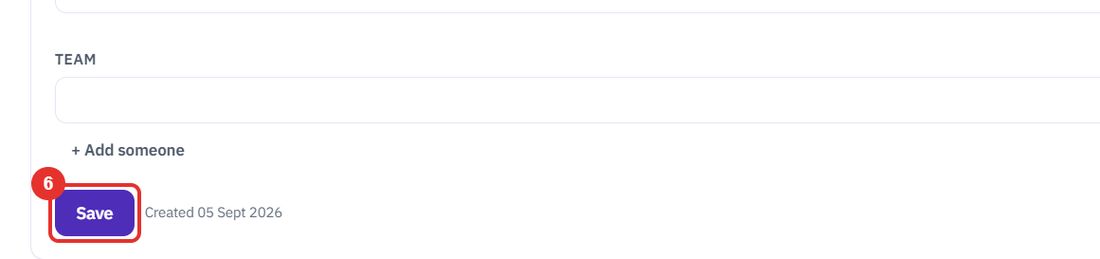
Save keeps what you changed on the page. Nothing is kept until you click it.
The button is at the top right of the deal page. The Lines and Quotes tabs hold the deal's lines and quotes. This guide does not click it.

Twenty minutes on a live workspace, with your files and your team.