1
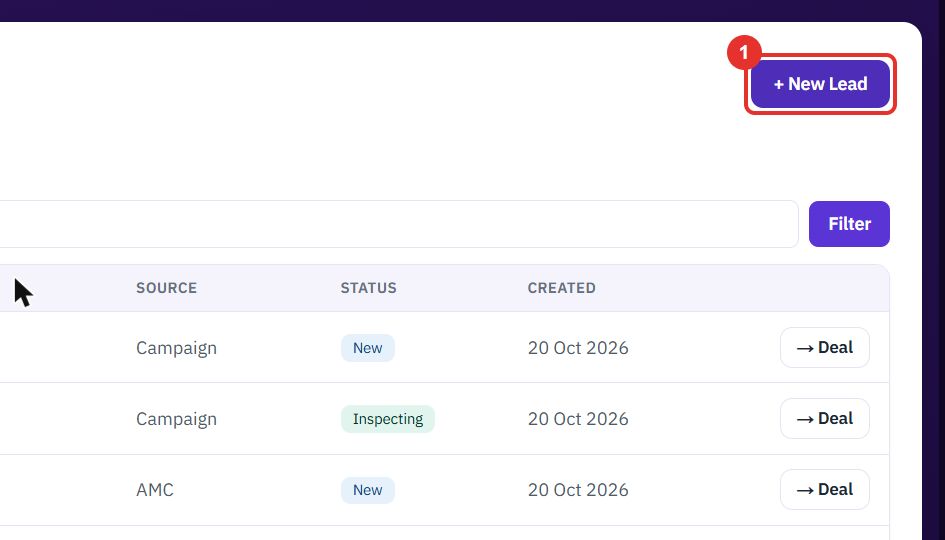
Click + New Lead
The button is at the top right of the Leads list. A small window opens on top of the list.
Capture an enquiry, find it by status, and turn it into a deal. Each step shows the exact button to click.
Want the full chapter? Solution Guide, chapter 5: Marketing (PDF) · All documentation
Do this when an enquiry arrives and you want to keep track of it before it becomes a deal.
The button is at the top right of the Leads list. A small window opens on top of the list.
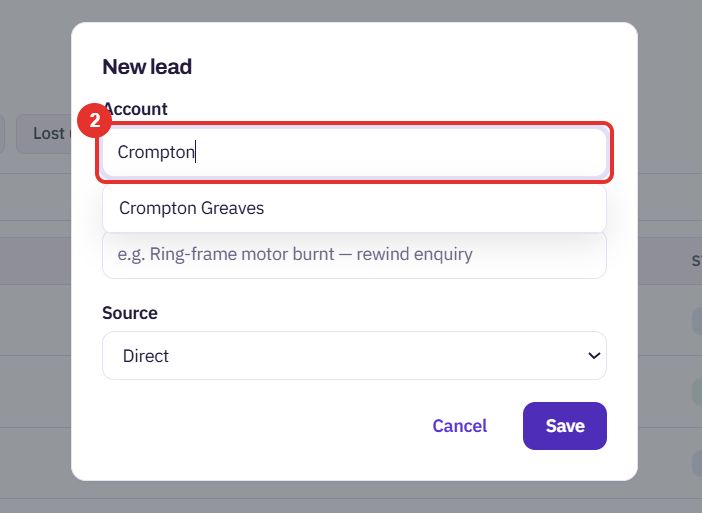
Type part of the company name. Matching accounts appear under the field.
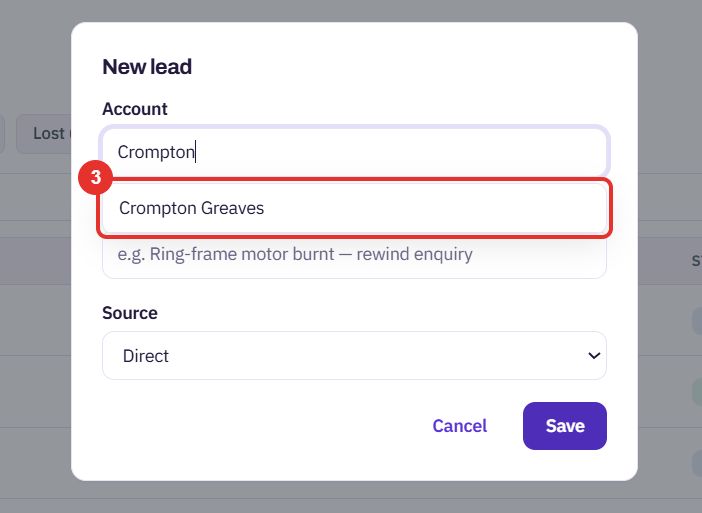
The name moves into the field. Use the small × to pick another one.
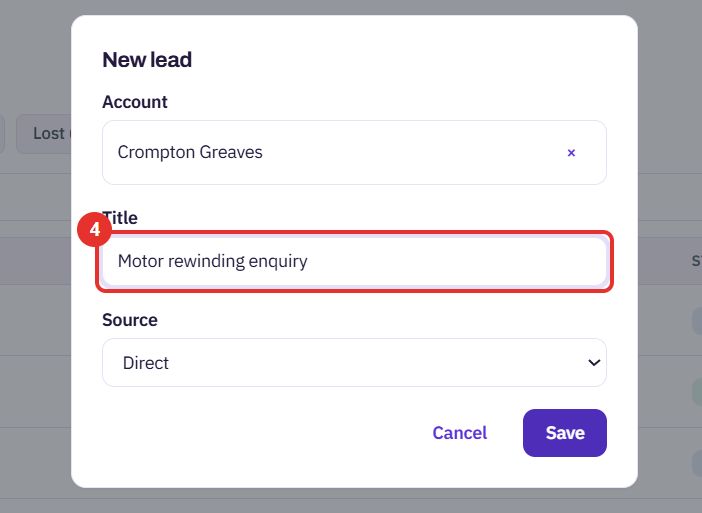
Say what the enquiry is about in a few words.
The list has Direct, OEM Referral and AMC.
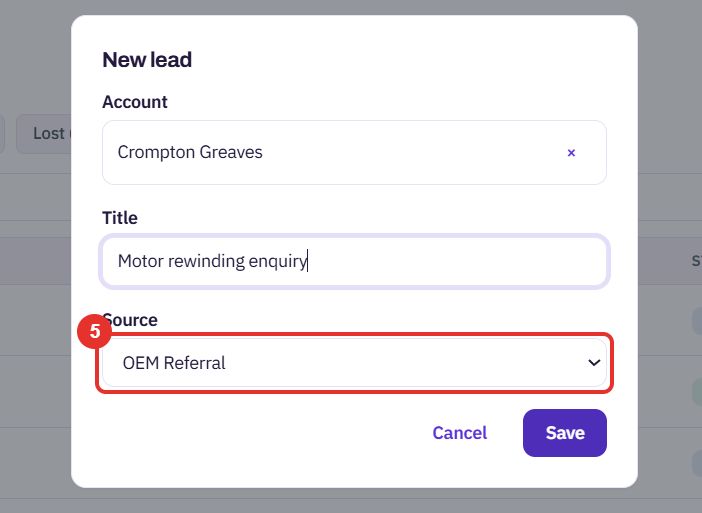
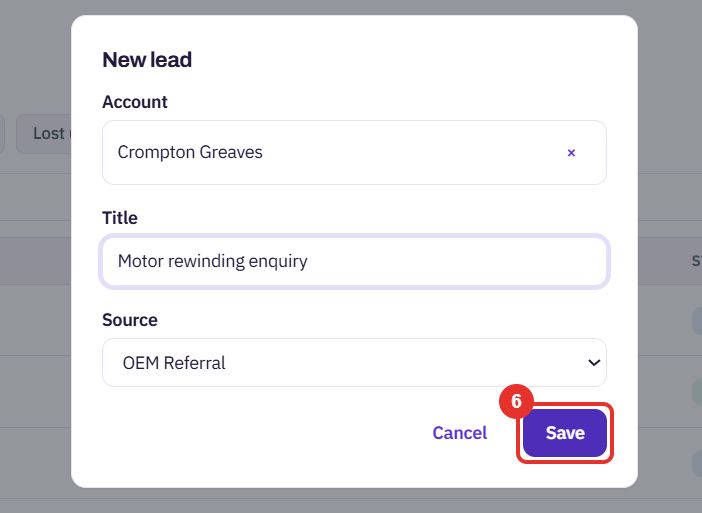
Cancel closes the window without saving.
Do this when a lead is ready to be worked as a sales deal.
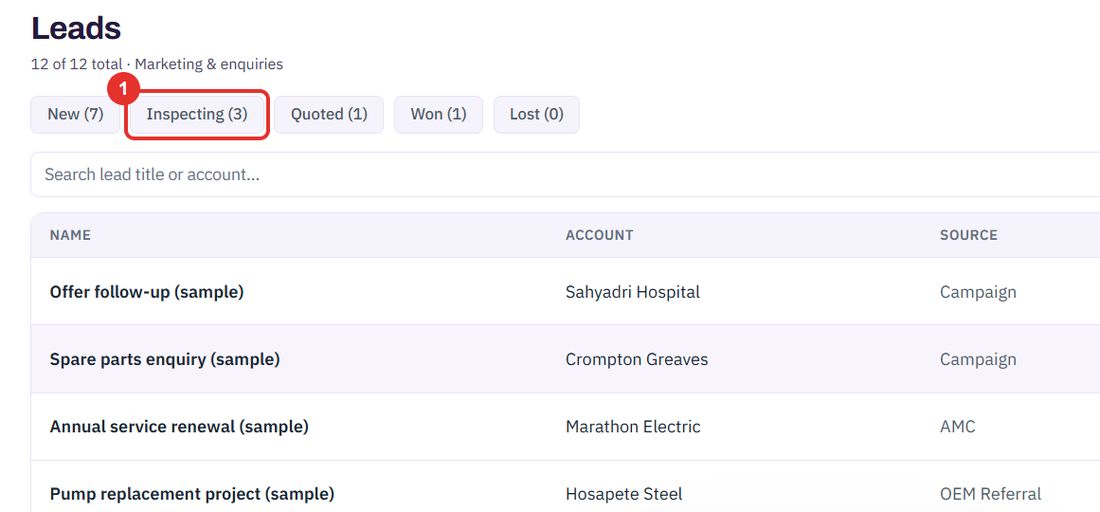
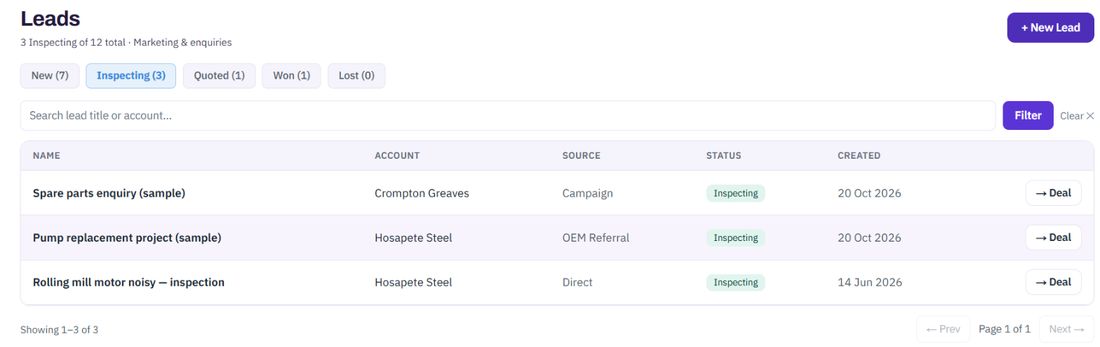
The buttons at the top are New, Inspecting, Quoted, Won and Lost, each with a count. The list shows only that status.
Use it with a status or alone.
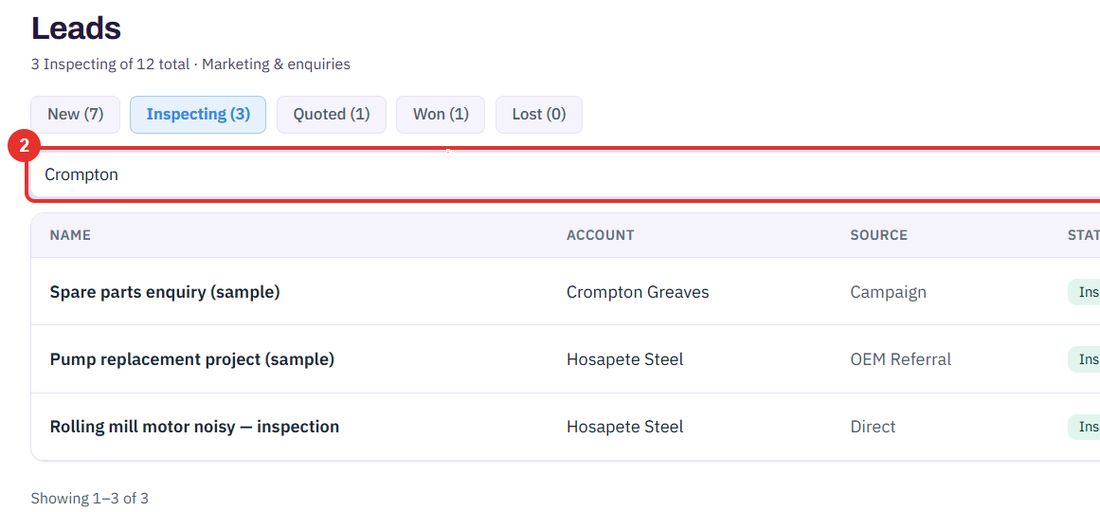
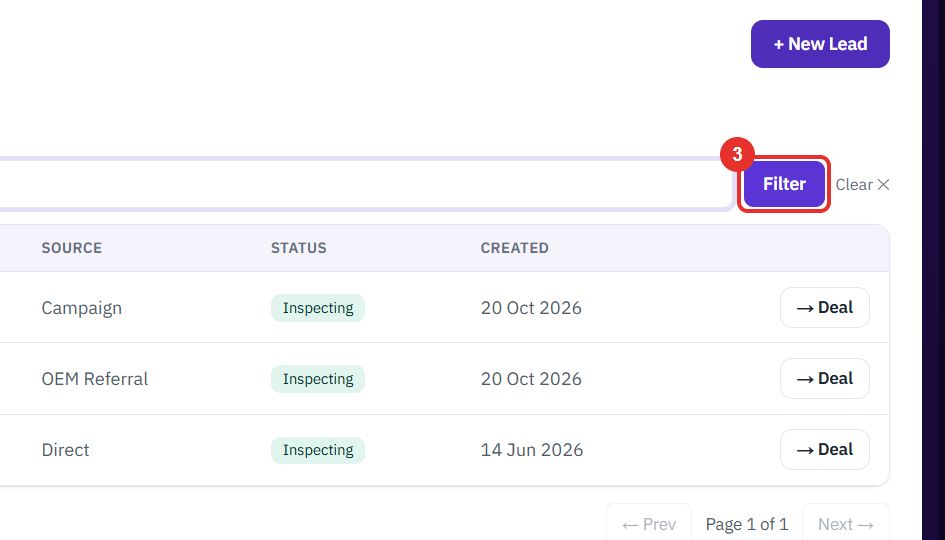
The list updates to the matches.
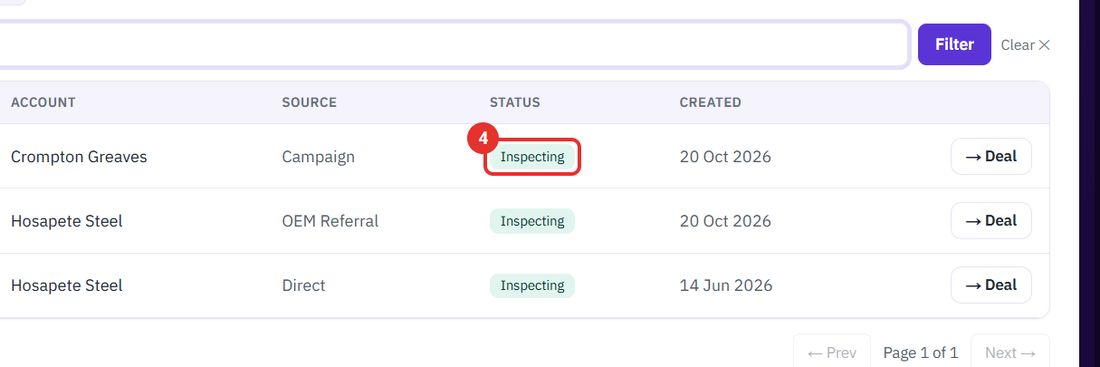
The status shows as a tag on the row. This list has no control to change it.
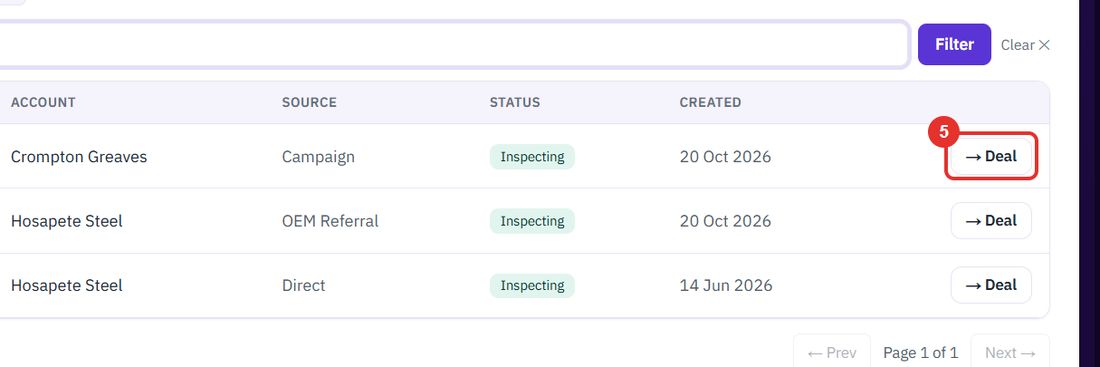
One click creates a deal from the lead and opens the deal page. The button reads Converting… while it works. If it fails, a short message appears under the button. This guide does not click it.
Twenty minutes on a live workspace, with your files and your team.