1
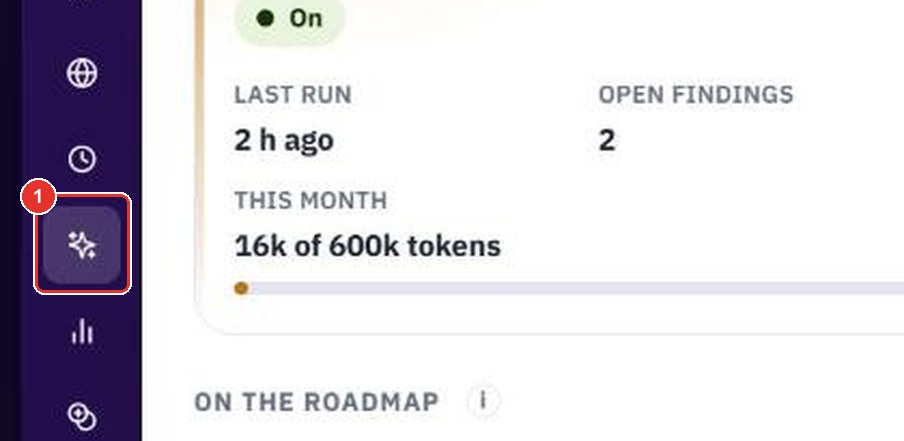
Click the AI automation icon
In the left menu, between Workforce and Insights, the sparkle icon opens AI automation. If you do not see it, the BPMSquare team has not switched it on for your workspace, or your business role hides it.
Agents that watch your workspace and suggest the next step. Tender Watch finds tenders at risk of missing their bid end date. Attendance Anomalies finds patterns a daily list hides. They only suggest: a person approves everything that reaches someone.
Want the full chapter? Solution Guide, chapter 7: AI automation (PDF) · All documentation
Everything here is off until the BPMSquare team switches it on for your workspace, and an administrator turns each agent on. The pictures come from a demonstration workspace with made-up data.
Do this to see your agents, what they found, and how much of the monthly allowance they have used.
In the left menu, between Workforce and Insights, the sparkle icon opens AI automation. If you do not see it, the BPMSquare team has not switched it on for your workspace, or your business role hides it.
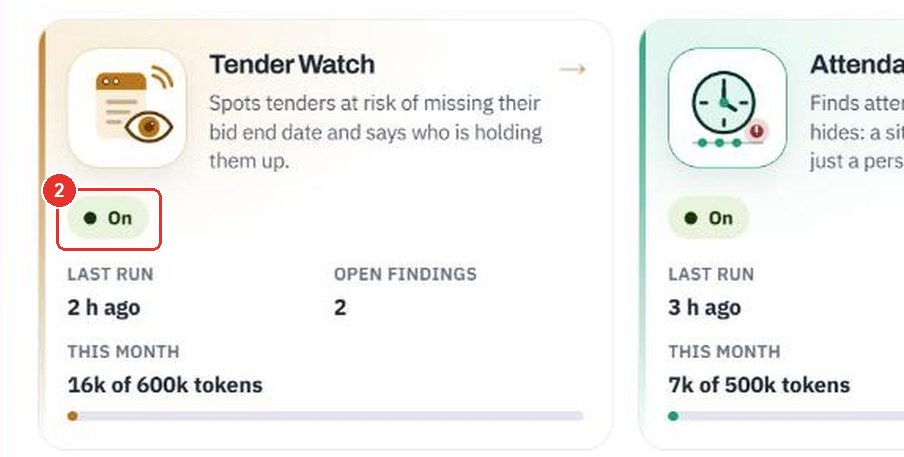
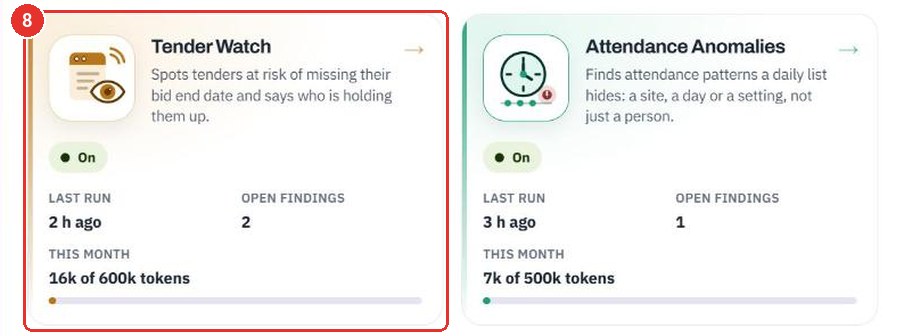
Each live agent has one tile. The chip says On, Off, Paused, Needs setup, Set your time zone or Allowance reached. Everything is off until the BPMSquare team switches it on and an administrator turns the agent on.
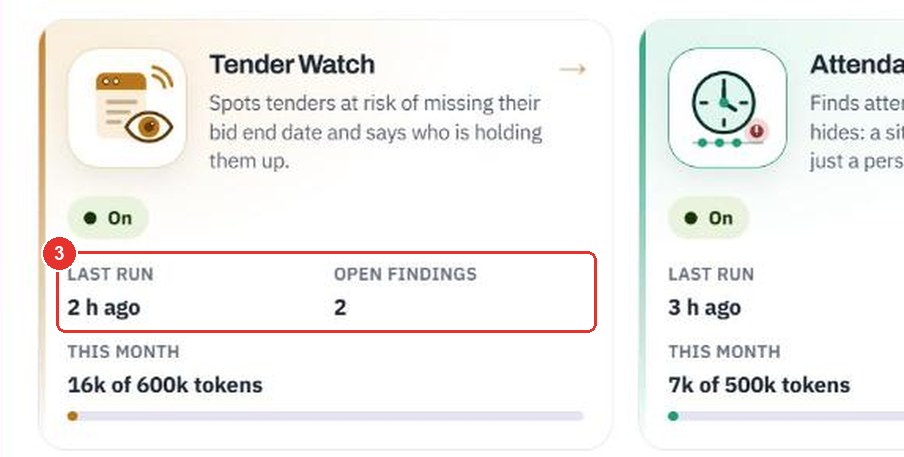
Last run is when the agent last looked. Open findings counts the suggestions nobody has closed yet.
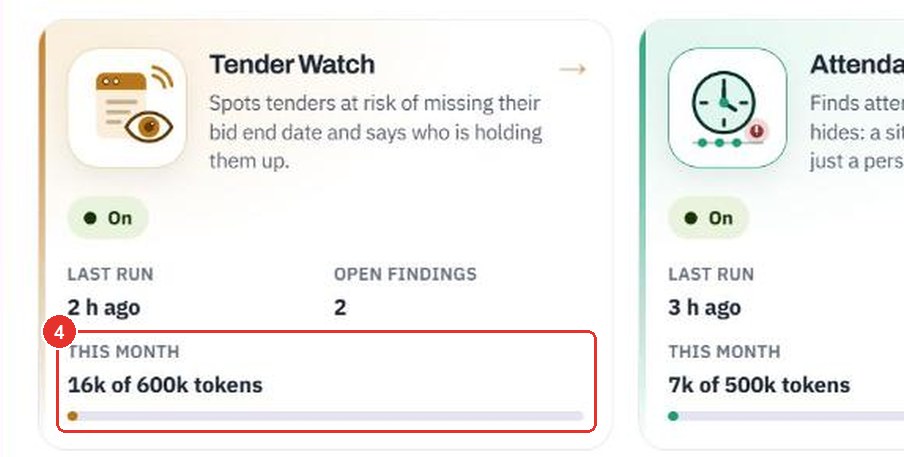
The tokens the agent has used this month against its cap. Tokens are the units AI use is counted in. When the cap is spent the agent pauses; the rest of BPMSquare keeps working.
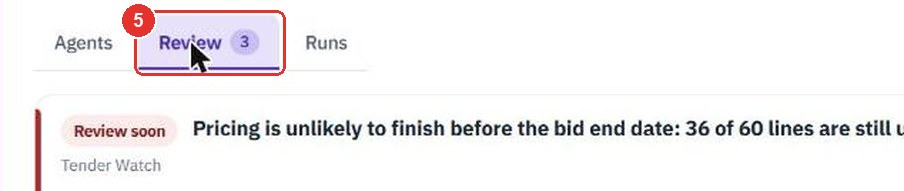
The tab lists the open suggestions of every agent, most urgent first. The number is how many are open.
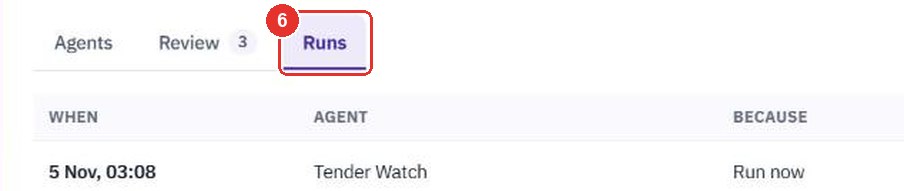
Every time an agent looked, and what came of it. Only people who may see an agent's runs see this tab.
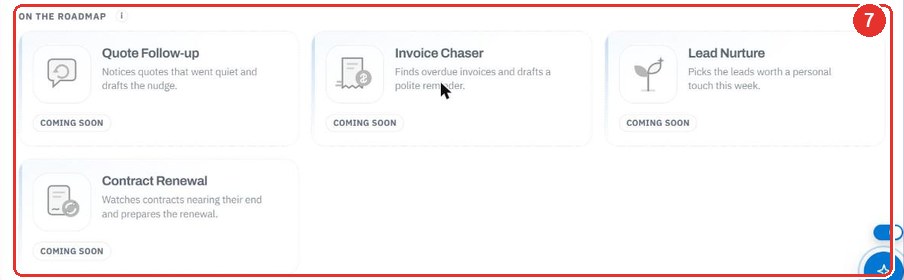
Quote Follow-up, Invoice Chaser, Lead Nurture and Contract Renewal are marked Coming soon. They are planned, you cannot open them, and no data is read for them.
A live tile is one link. It opens the agent's own page. Attendance Anomalies opens the same way.
The name, the status chip and, for administrators, Run now. Under them are three tabs: Review, Runs and Settings.

Tender Watch looks at your open tenders each morning. It says which one may miss its bid end date, and who is holding it up. It only suggests.
On the Tender Watch page the Review tab is the one that opens first. The number is how many suggestions are open.

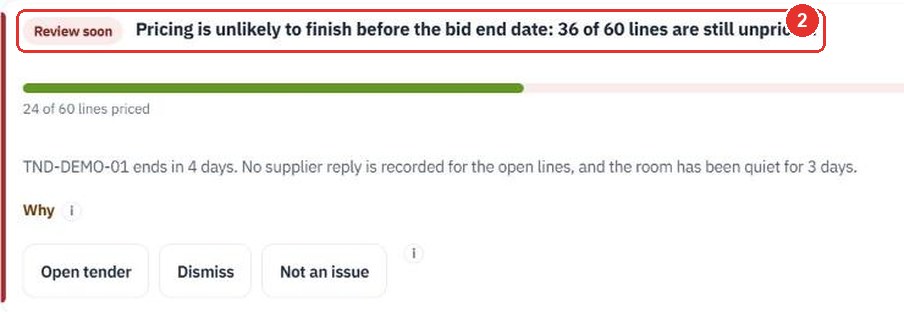
Review soon is the most urgent. Worth a look comes next. Note is for information. The title is one sentence.
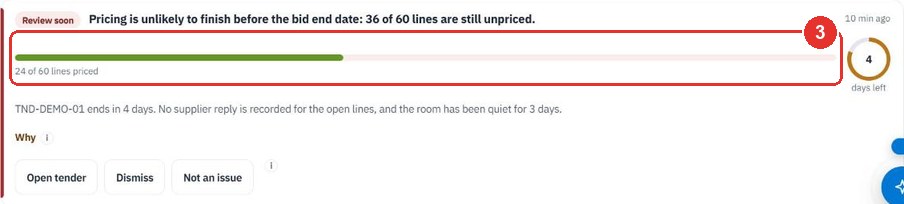
Lines priced, out of all the lines in the bill of quantities. The figures come from your own records, never from the AI.
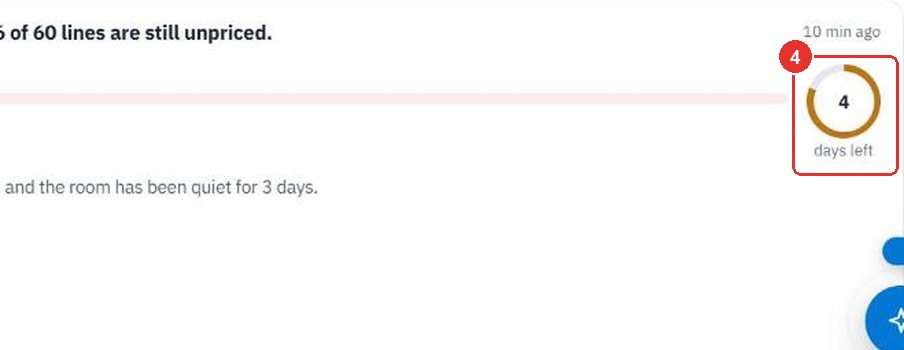
Days left to the bid end date. The ring turns red at three days or fewer.
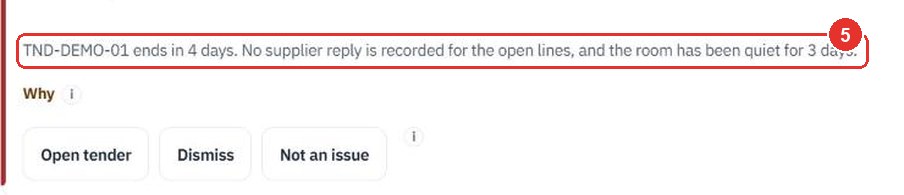
It names the tender and what the agent saw. Here no supplier reply is recorded for the open lines, and the room has been quiet for three days.
It opens the tender so you can act. This guide did not open it. Tender Watch never predicts a win, suggests a price or a margin, or advises bid or no-bid.

Every suggestion shows the evidence it rests on.
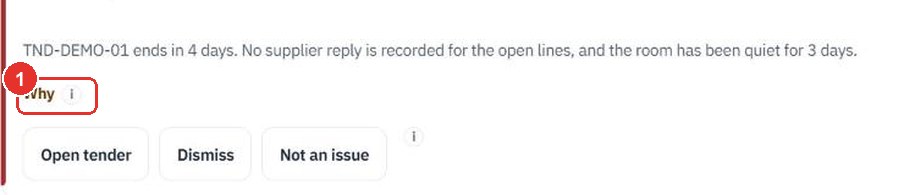
The evidence is folded away until you ask. A small i next to it explains the word.
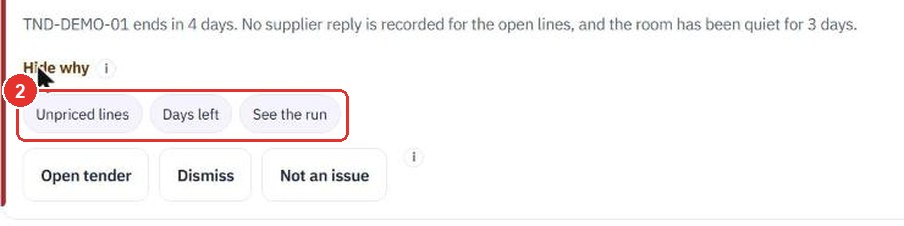
Each chip is a piece of evidence, here Unpriced lines and Days left. A chip with a record behind it opens that record. If the agent could not read something, Could not check lines appear under the chips. It says so instead of guessing.
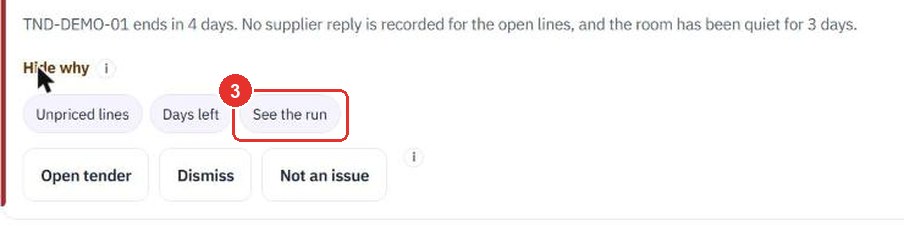
It opens the run that made the suggestion. Read a run shows what is on that page.
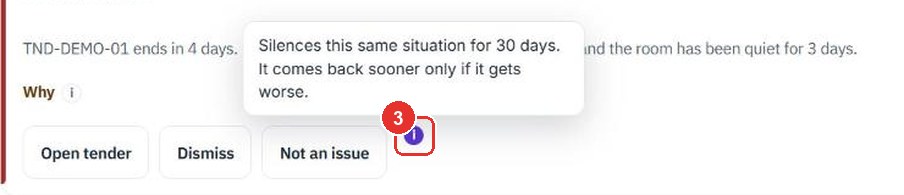
Close a suggestion you do not need. The two buttons do different things. This guide pressed neither.
It means “not now”. The suggestion returns tomorrow if it is still true.

It silences the same situation for 30 days. It comes back sooner only if it gets worse.

It explains Not an issue in two sentences. Both choices are recorded in Change history.
For some suggestions Tender Watch drafts a short, polite note to the colleague who is holding a tender up. Nothing is sent until a person edits and approves it.
Open a run and the Proposed section. It shows the note, its state (here pending) and who it is for. In the demonstration workspace this note is addressed to another colleague, so it is not offered to the signed-in person on the Review tab. The steps after this one therefore have no pictures.

If you are one of the people who may approve the note, a Suggested note box appears under Why. It shows a To: line and the draft.
The text opens for editing. There is no one-tap send for text that reaches a colleague.
Edit the note until it says what you would say. It can be up to 1,500 characters.
The note goes out as your own: a Deal Room mention when the tender has a room, and an e-mail to the colleague through your workspace's normal outgoing mail. It is logged. Click Reject instead to discard the draft. Nothing is sent.
A run is one time an agent looked. The run page shows what it read, what it concluded, what it proposed and what it could not check.
Each row is one run: When, Because, Result and Tokens. Because says what started it: a daily pass, Run now, or something that changed.

The time opens the run page.

Because, Status, Started, Tokens in / out and Share of cap, the part of the agent's monthly allowance this run used. The AI model is named too.

Each source the agent read, with links to the records. Administrators have a Raw switch for the stored data. A quiet pass reads nothing and says so, as this demonstration run does.

Each suggestion, with the evidence under it. The numbers come from your records, never from the AI.

Each drafted note with its state and who it is for.

Anything the agent could not read, and any suggestion it dropped because it did not pass the checks, with the reason. It is empty here.

Administrators see this button on an agent's page. It starts a run at once instead of waiting for the next scheduled time. The result appears under Runs within a few minutes. It allows one manual run per agent per hour. This guide did not press it.

Attendance Anomalies looks for patterns a daily list hides: a site, a day or a setting, not just a person. Every finding is a suggestion to review, not a verdict.
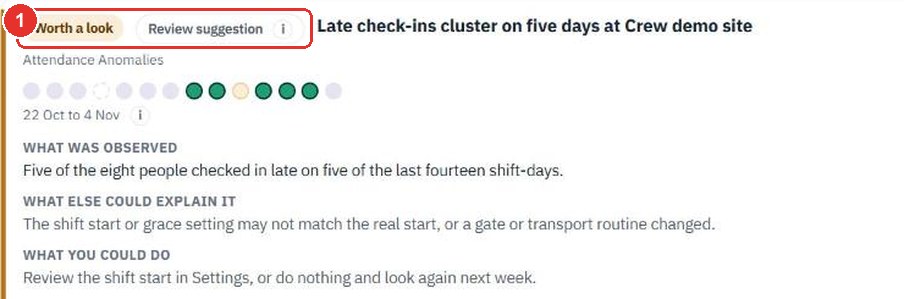
Every attendance finding carries it. The severity words are Worth a look, Review soon and For information. They are never a charge.
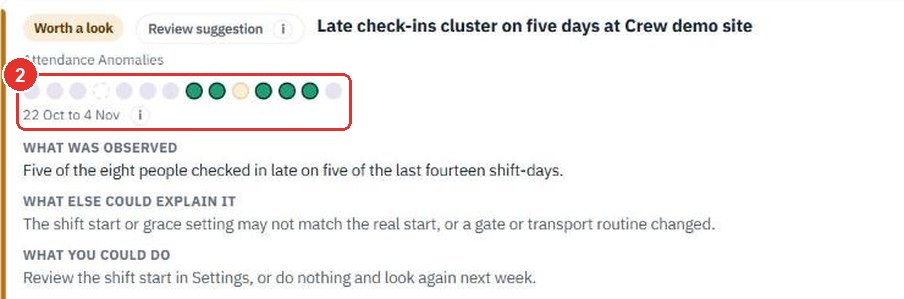
One dot per shift-day. A filled dot is a day the pattern is made of. A paler dot is a day with other attendance notes. A dashed dot is a day nobody was expected.
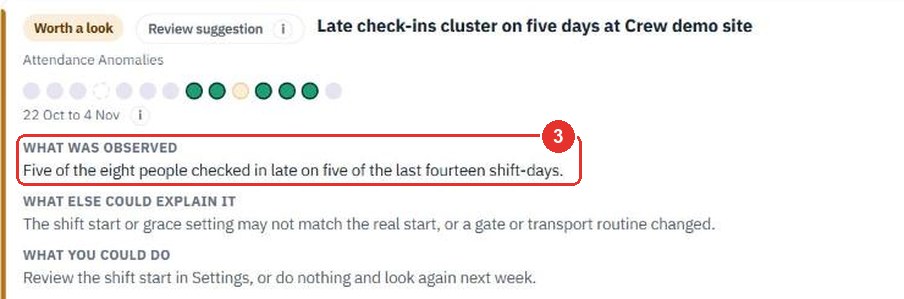
The facts, counted by the system. Here five of eight people checked in late on five of the last fourteen shift-days.
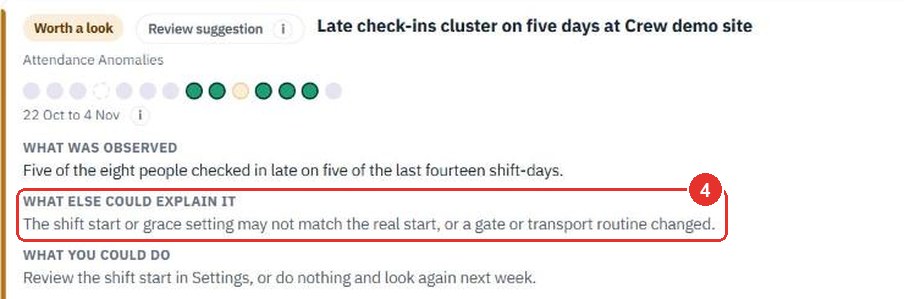
At least one reason that is not about a person: a shift start or grace setting, a gate or transport routine, a device problem.
The options, including doing nothing. Nothing is decided or sent for you.
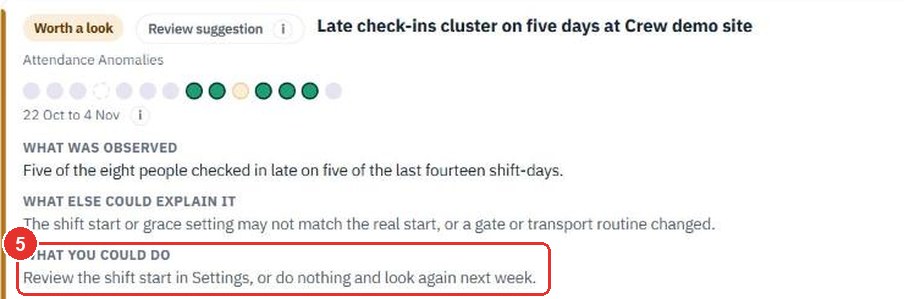
The chips show the evidence: here People late and Days. See the run opens the run page.
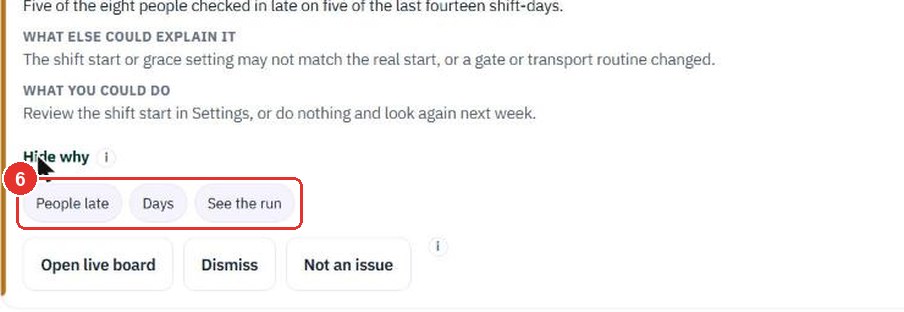
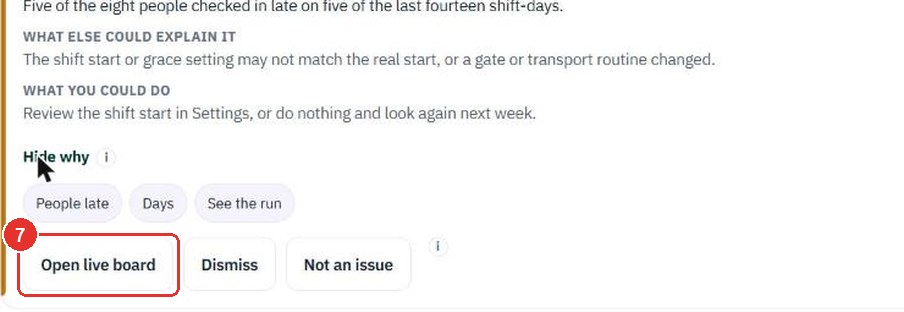
It opens the live board. A finding about one person offers Open employee instead.
For a pattern that points at a few people, a card lists the people it would reach. You clear the tick on anyone who should be left out, then click Edit and send. It goes out as your own recheck request, in neutral words, and never mentions the agent. The demonstration workspace has no recheck card, so there is no picture.
Administrators set when an agent looks and how sensitive it is. Changes apply to the next run. This guide saved nothing.
It is the third tab on the agent page. Everyone who can see the agent can read it. Only administrators can change it.

Off by default. An agent cannot be switched on until your workspace time zone is set under Settings, Workforce.
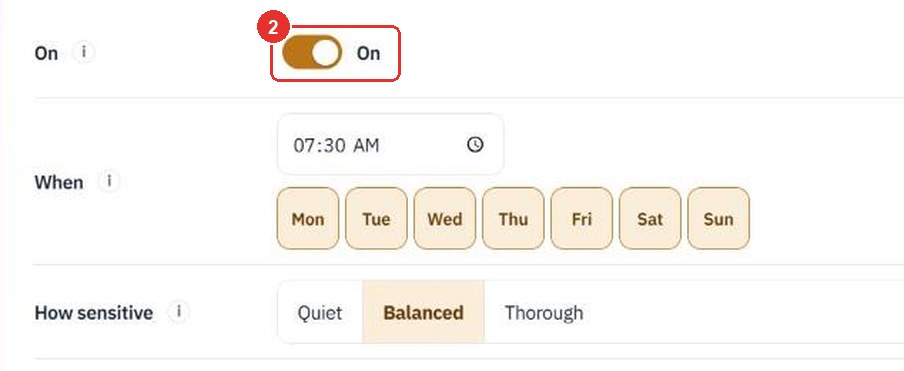
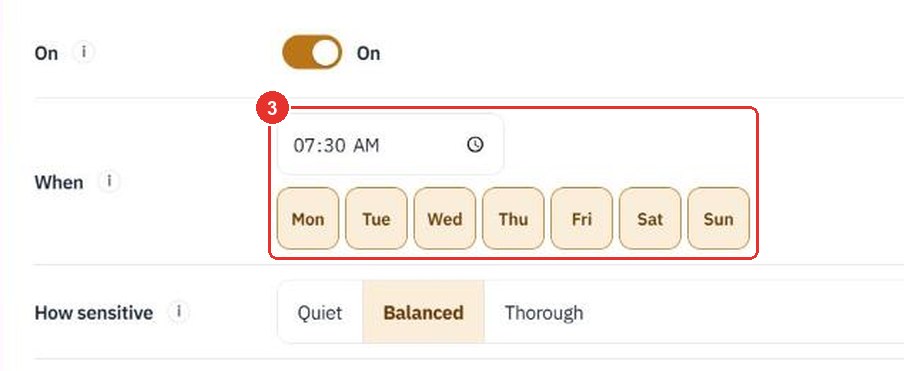
The time of day in your workspace's own clock, and the days it looks. A day with nothing to report costs nothing.
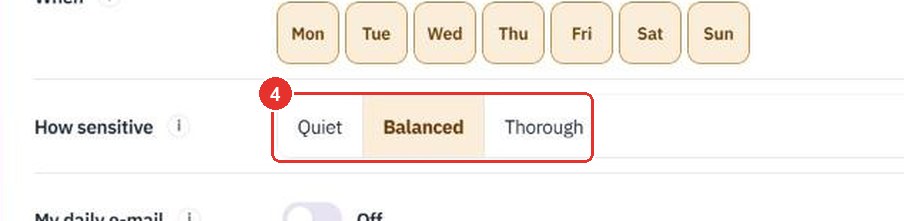
Quiet speaks up only when fairly sure. Thorough also raises early signs. Balanced sits between. One choice replaces several thresholds.
An e-mail to you alone with what is open. It never goes to anyone else. For Attendance Anomalies it carries counts and severity words only, never a name.

Tokens used this month against the agent's cap. You cannot change it here. The BPMSquare team sets the cap.

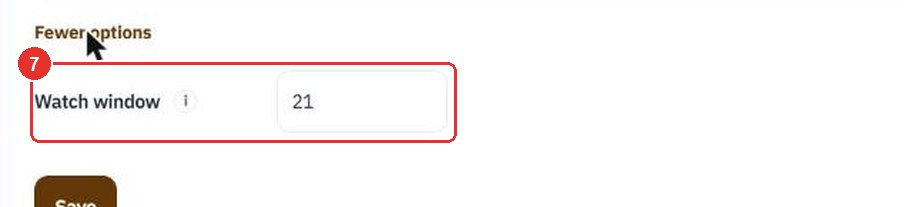
For Tender Watch this shows the Watch window: tenders closing within this many days are looked at, 21 by default. Closer ones are always looked at.
Late arrivals, Missing check-outs and Punches far from the site. Each can be switched off. The Where row above it chooses the sites, and none chosen means every site.

It saves the settings. This guide did not press it.
One switch stops every agent. This guide did not press it.
At the top right of the gallery, for administrators. Pressing it stops every agent between steps. The tiles say Paused, and Run now disappears. Suggestions already made stay, and a drafted note can still be approved or rejected. Press the switch again to resume.
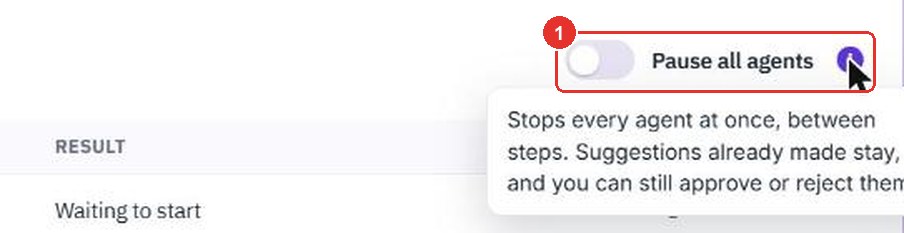
It says the same in three lines. Each agent also has its own On switch in its settings.
Twenty minutes on a live workspace, with your files and your team.